11. Surfacing Wasteboard 🟫
The AltMill 4×8 table is designed to use two (2) MDF sheets as the table surface and the wasteboard, respectively.
- The table surface is the first layer, screwed down to the table via crossbeam holes
- The wasteboard is the second layer, in which stock material would secure to
- This could be a full sheet of MDF or a set of slats
- This is secured onto the table surface and can be replaced easily as needed
If you can, source sheets of 5’x10’x¾” MDF so they can be cut to size to cover the table.
Otherwise, you can use 4’x8’x¾” MDF. You may want to purchase an extra sheet since this option is shorter. Ideally we want the MDF to reach the second-last crossbeam, this allows for access to the underside of the table while providing support to the wasteboard.
Table Surface
1. Prepare the MDF by cutting it to size based on your table configuration:
5’x10’x¾”
Default – 51.75″x98″
Joinery – 51.75″x95″
4’x8’x¾”
Use one (1) full sheet. Optionally, cut extra from a second sheet to reach the second-last crossbeam.
2. Lay the MDF sheet on top of the AltMill, centered between the left and right of the table, while lining up to the front of the table.
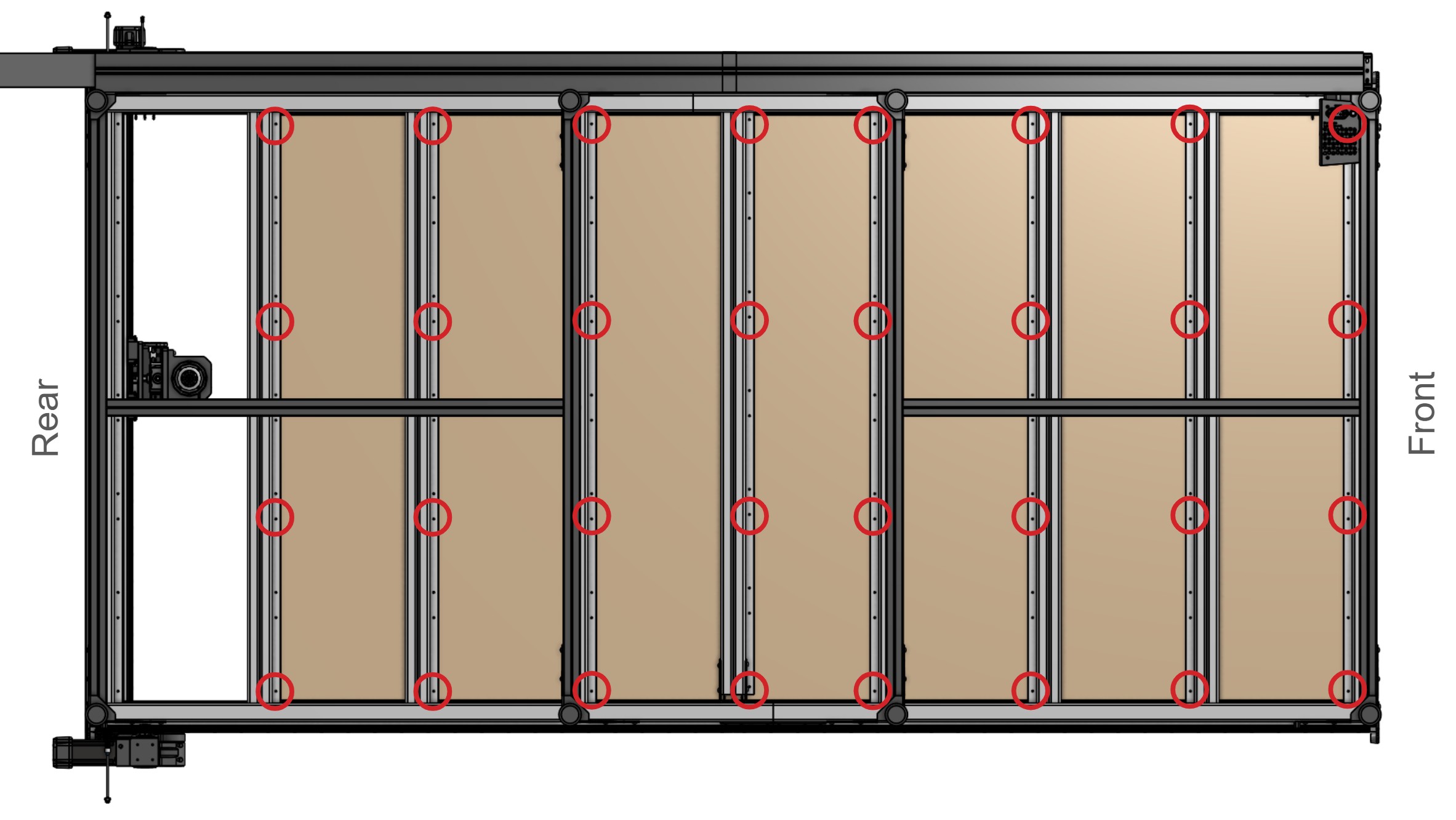
3. From underneath the table frame, install ¾” long #6 or #8 wood screws through the holes in each crossbeam and into the MDF sheet. Use the four (4) holes per crossbeam as shown.
Wasteboard
1. Proceed with one of these wasteboard options:
- Install the T-track sets alongside MDF slats
- You will need 2 sets of T-tracks to span the entire length of the machine
- Install a sacrificial top sheet
T-track Installation
1. If you are installing the T-track set as part of your wasteboard, use another MDF sheet and cut the length to match your table surface.
2. Once cut to length, cut seven (7) ‘slat’ pieces that are ~6.125” wide.
3. Lay all 7 slat pieces and 8 T-track sections onto your table surface, lining these up with the front edge of the table.
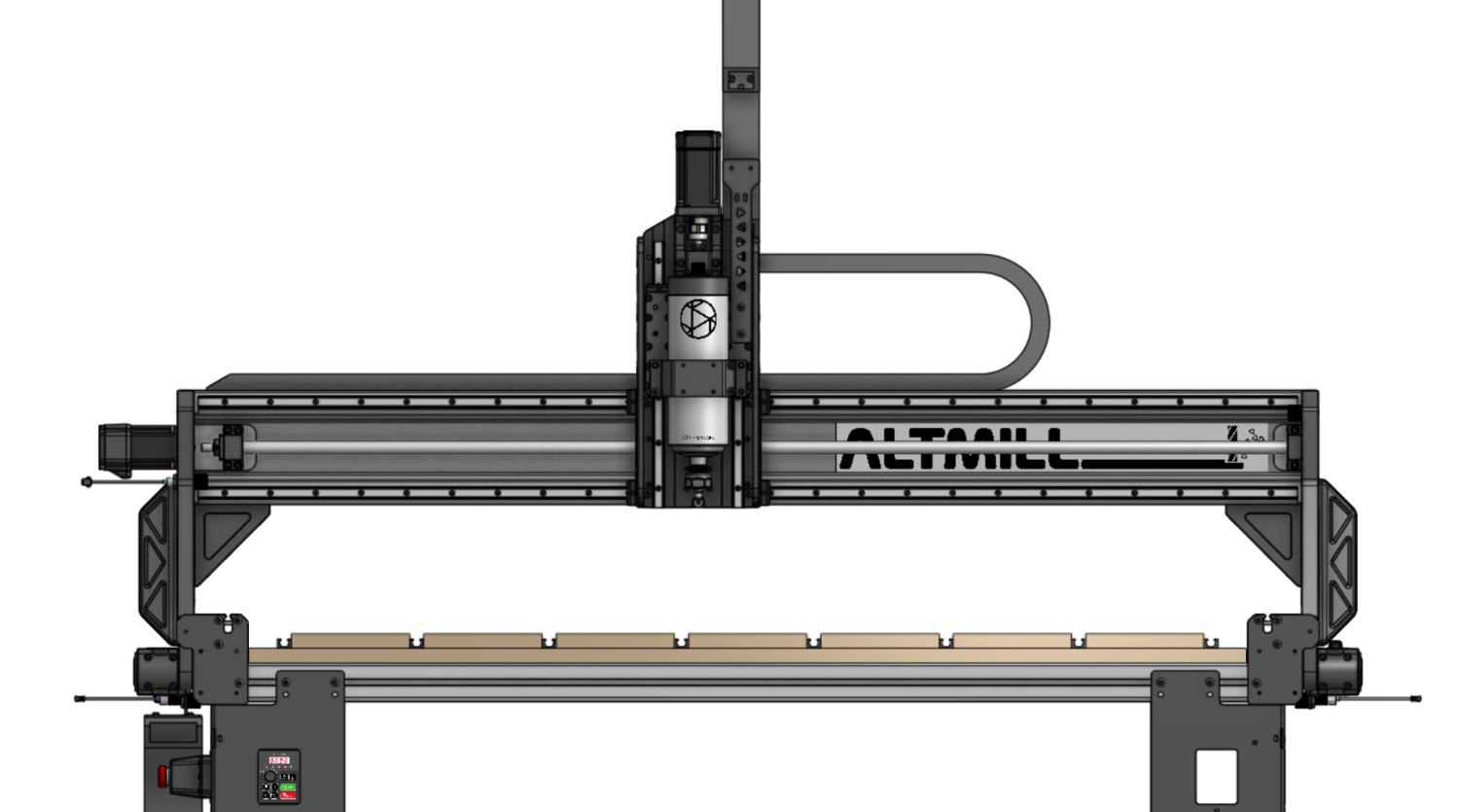
4. Use ¾” long #6 or #8 wood screws to secure the T-tracks, and 1 ¼“ long #6 or #8 wood screws to secure the slats into the MDF table surface. You’ll want to create a recess in each slat for the heads of the wood screws, so that they sit below the top surface, as we will be surfacing these slats later on.
Once finished, you’re ready to move on to surfacing!
Sacrificial Sheet Installation
1. Use the second MDF sheet and cut it to size, matching the table surface.
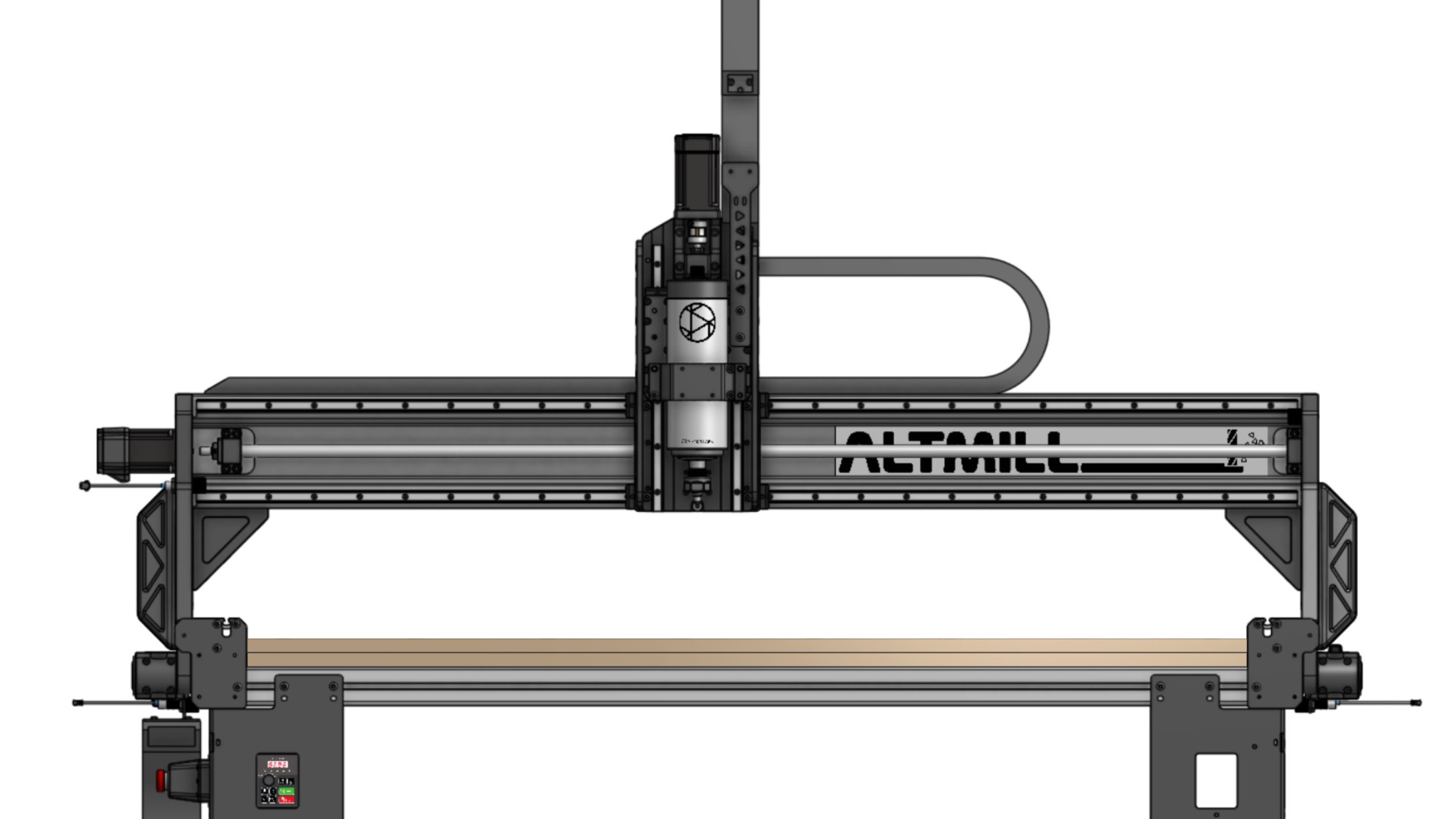
2. Lay this MDF sheet onto the table, and secure this with wood screws placed in a grid pattern. Be sure to recess the heads of each screw below the surface of the MDF since we’ll be machining the top surface of these slats.
Once finished, you’re ready to move on to surfacing!
Surfacing
Surfacing makes the wasteboard surface parallel to the CNC. This is important because when you’re trying to cut a 1mm deep circle into your material, you’d want it to be 1mm deep at all points along that circle, not deeper in some areas and shallower in others.
Surfacing can also:
- Minimize the effects of warp on the MDF
- Be used for maintenance purposes to clean off old marks and scars, leaving you with a new, clean surface to glue, clamp, and mount your material to
When surfacing, you will want a cutting tool specific to this process, called a surfacing bit. These are made for light passes but are usually larger in diameter, so they can cover a large area quickly while leaving a good surface finish. Larger bits can also reach further outside the cutting area of the machine. You can find surfacing bits on our store.
Step-by-step Guide
You can follow the video or the written steps below:
1. Turn ON your controller and connect to gSender.
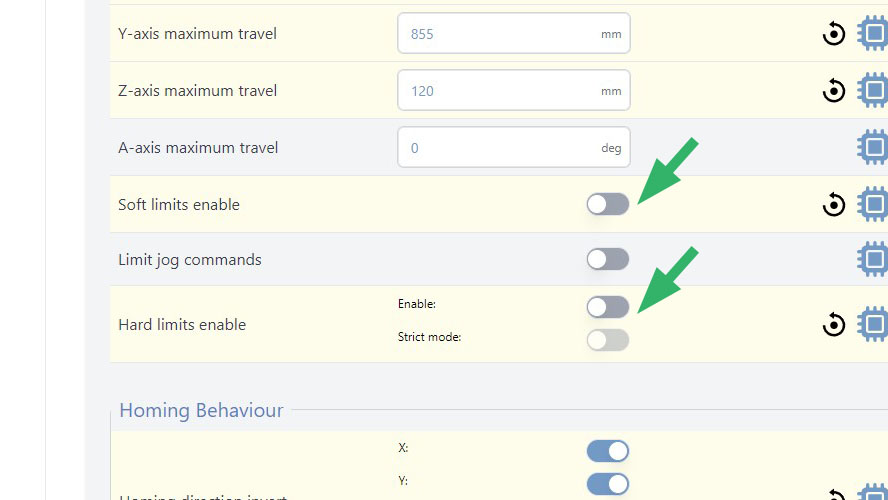
2. Open the Config tool, and under Homing/Limits, disable the hard and soft limits. You will get an Alarm 2 if soft limits are enabled and you won’t be able to surface you spoil board.
3. Home your machine.
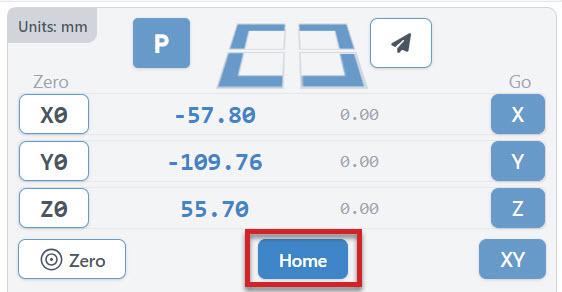
4. Determine the size of your surfacing area:
a. Install your surfacing bit
b. From the home position, jog your machine to the front.
c. Jog the machine in the Z-axis so the bit touches the wasteboard.
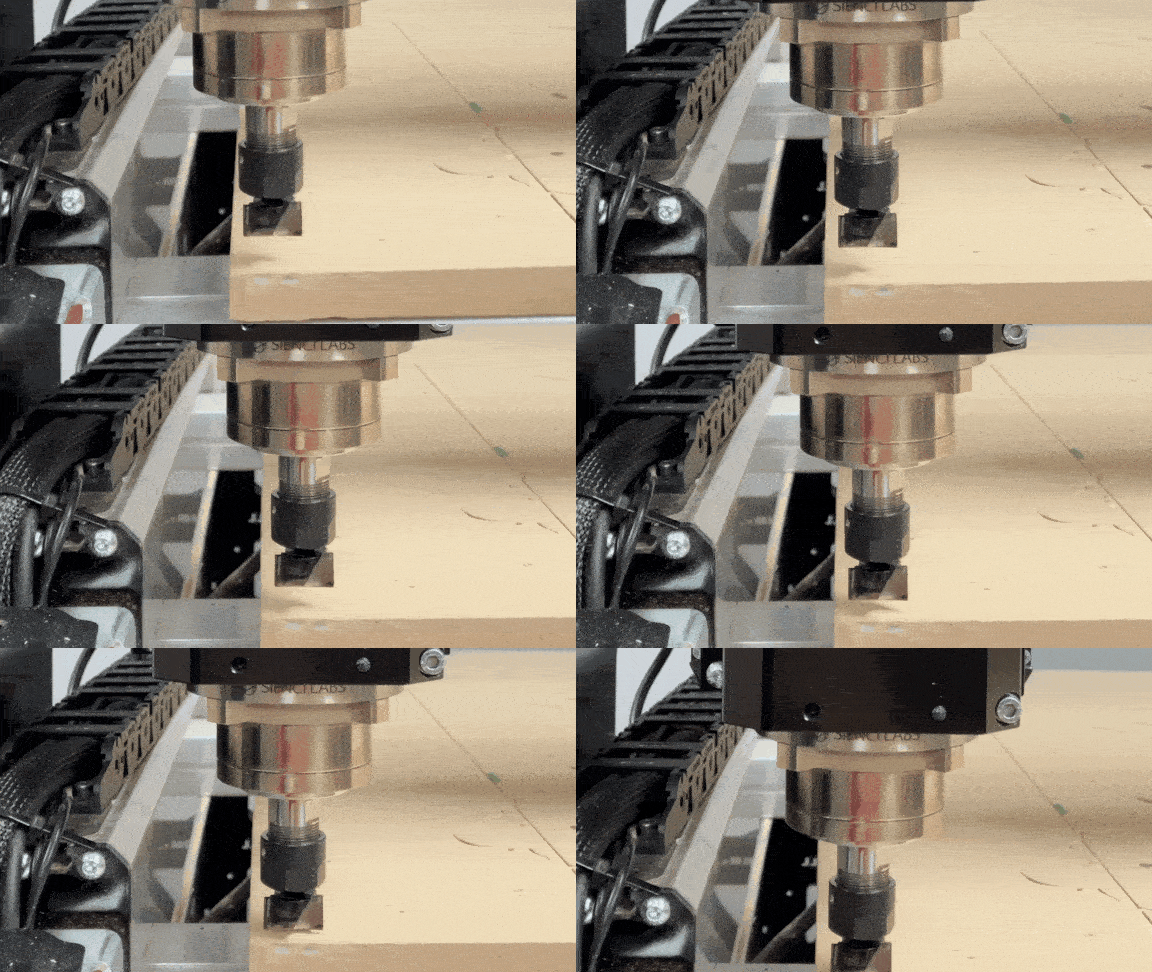
d. Zero all the axes on the machine using the Zero button.
e. Jog your machine to the right side, so that the center of the bit reaches the edge of your wasteboard.
f. Then jog your machine to the back, again so that the center of the bit reaches the back edge of your wasteboard.
g. Use the blue numbers as your X and Y dimensions for your surfacing. As reference, it should be approximately 49″ x 103″ (~1245mm x 2616mm), this is dependent on the size of your surfacing bit.
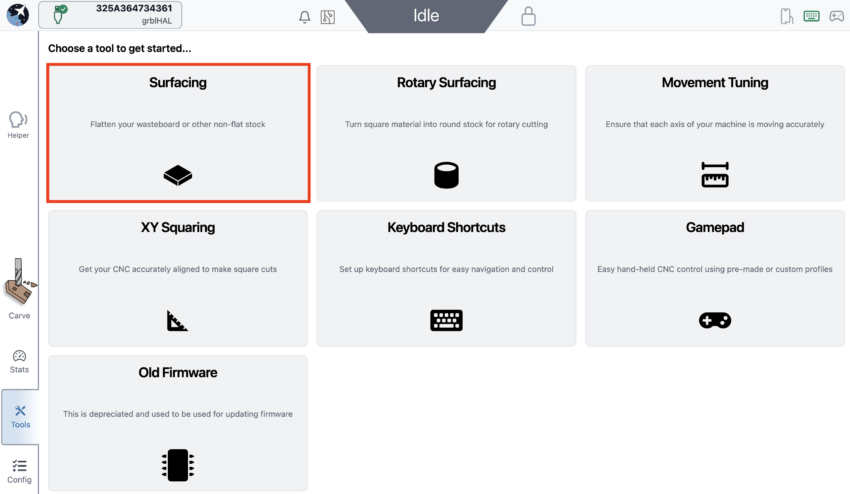
5. Navigate to Tools, then to Surfacing.
6. You will find the surfacing settings, please adjust them according to your needs.
X & Y: This is the max dimensions you wish to surface. Use the values determined in Step 4.
Cut Depth: Keep this at 0.04in (1mm) or less, cutting any deeper with a large bit can result in an uneven surface
Max: This is the total depth of cut into your wasteboard, normally set to 0.04in (1mm). Greater depth is necessary if your board is very warped or has deep imperfections. If the Max and Cut Depth are set to the same value, the machine will perform only one surfacing pass.
Stepover: use 40% overlap, larger stepover will result in a longer cutting time and a smoother finish, whereas smaller stepover will result in a rougher finish.
Spindle RPM: A speed setting of around 20,000 RPM works well for MDF and other woods.
Feedrate: 8000 mm/min should be suitable for the AltMill 4×8 cutting MDF, however running this slower may produce a slightly nicer finish.
Start Position: We recommend keeping this at the bottom left corner of the square, which is the front left corner of the AltMill.
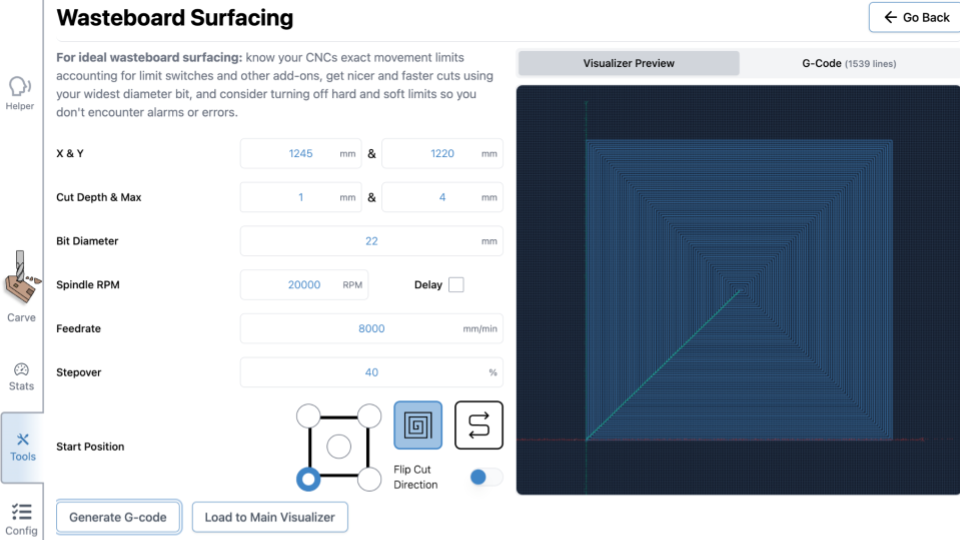
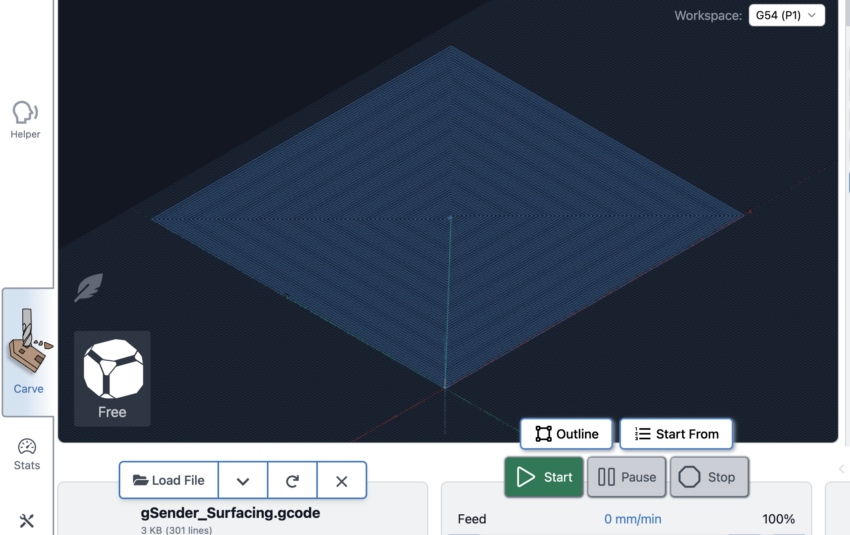
7. Once you adjusted the settings, you can click ‘Generate G-code’ to view the toolpath using the Visualizer Preview on the right side of the window.
8. Click ‘Run on Main Visualizer’ to load the file onto gSender.
9. Remove the dust shoe to avoid damage to the dust shoe when the machine is at the travel limits. However you should still run a vacuum to minimize MDF dust in the air.
10. Put on a mask or respirator, since MDF dust is very fine.
11. Then you can press Start Job!
12. Once surfacing is complete, enable the Soft and Hard Limits again. Turn OFF/ON the controller to have the changes take effect.