Shortcuts
Shortcuts
Starting off as a more advanced gSender user, the first feature you’ll want to leverage is shortcuts. These can allow you to assign gSender shortcuts or CNC actions to keyboard keys or even to gamepads and joystick movements – very useful for things like jogging, setting zero, running macros, and menu navigation.
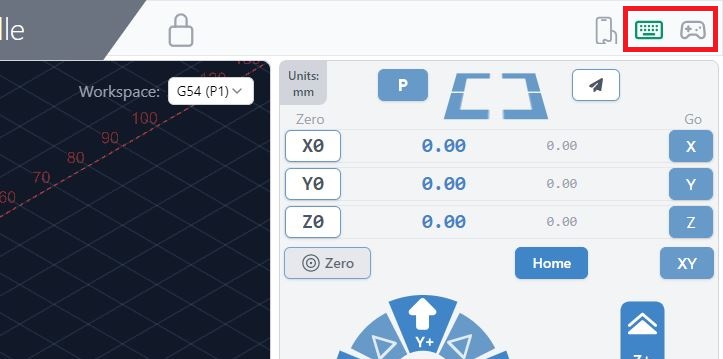
You can access and set up shortcuts by clicking the keyboard or gamepad icons in the top, right corner. Any changes you make in these windows will save automatically, and setting up a shortcut is as easy as finding what action you want to perform and what button you want to activate it. Also, for easy reference, the keyboard and gamepad icons can be clicked from anywhere in the app and will light up green if they detect you have a keyboard or gamepad connected to your computer.
Going to the ‘Tools’ tab on the left side of the window is another way to access the Keyboard Shortcuts or Gamepad. 3rd party apps like JoyToKey, Xpadder, Comfort Keys Pro and reWASD also allow you to do this, but to eliminate needing to download and configure other programs we’ve rolled all the functionality into gSender itself.
Keyboard Shortcuts
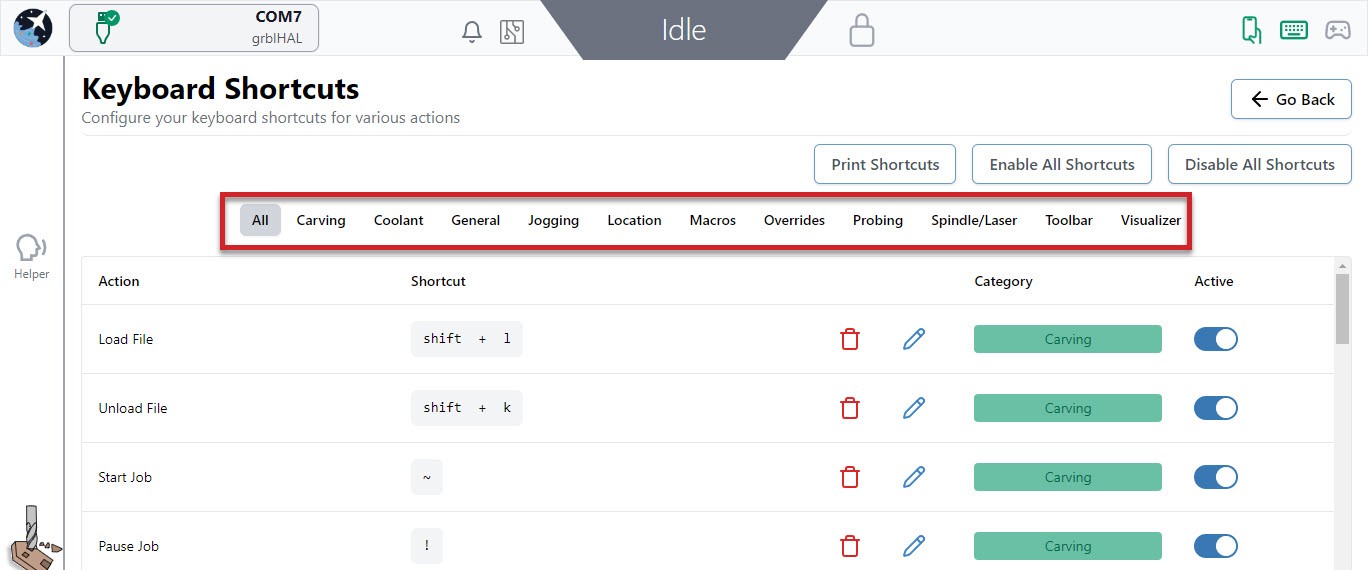
Either for use on a keyboard, macro pad, or mini Bluetooth keyboard, these are split up into categories so they’re easy to locate and modify. There are over 70 shortcuts with presets already available for carving, overrides, jogging, zero setting, probing, macros, visualization, window navigation, and more!
Common Shortcuts
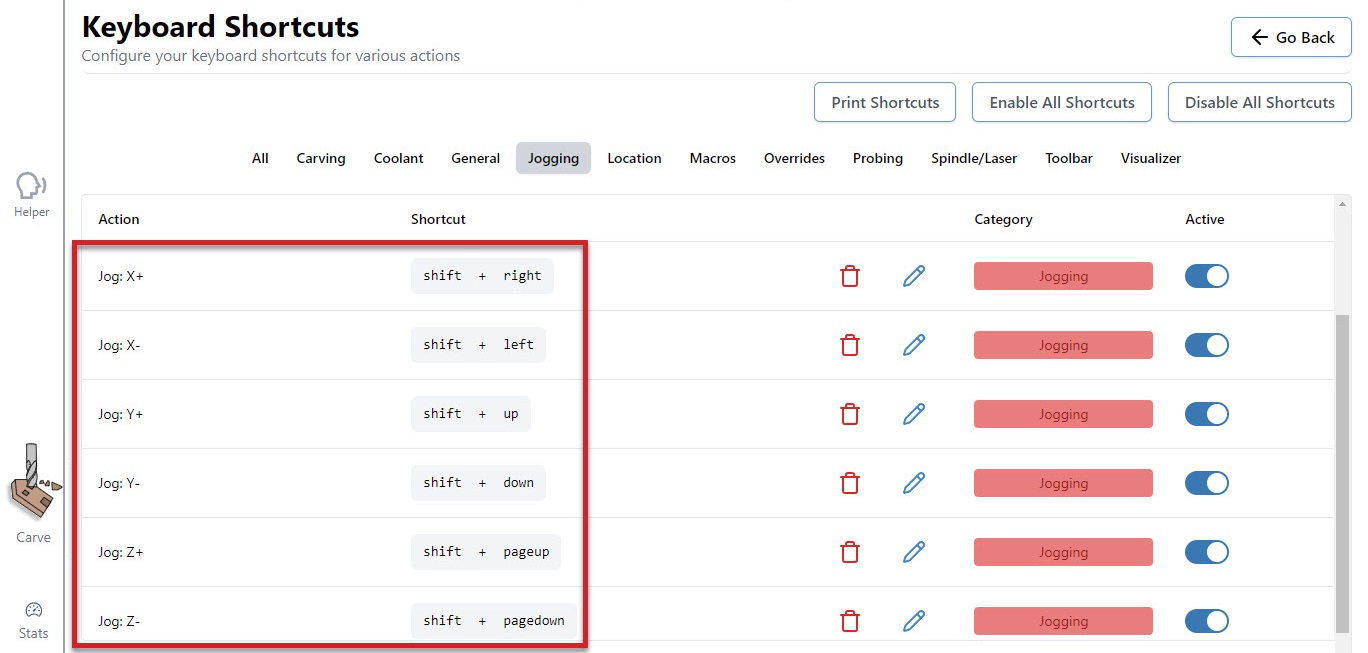
A great place to start is the Jogging category. In the picture below, see that right now we can jog the X-axis by hitting the shift + right or shift + left keys. The Y-axis responds to shift + up and shift + down keys and the Z-axis uses the shift + pageup and shift + pagedown keys. Being able to look at your CNC, while your hand is on your keyboard is a great way to ensure you are moving in the right direction, without having to look back at your screen to click the mouse on the right button.
You can use the preset shortcuts, edit them, and/or add your own. Click the pencil to the right of each shortcut text box to bring up a popup window that allows you to add or edit your own key combination (shown in the example below). It’s as easy as pressing the key or key combination. You’ll also be informed if the combination you’ve entered is already used elsewhere and be given the option to overwrite the existing one if you want.
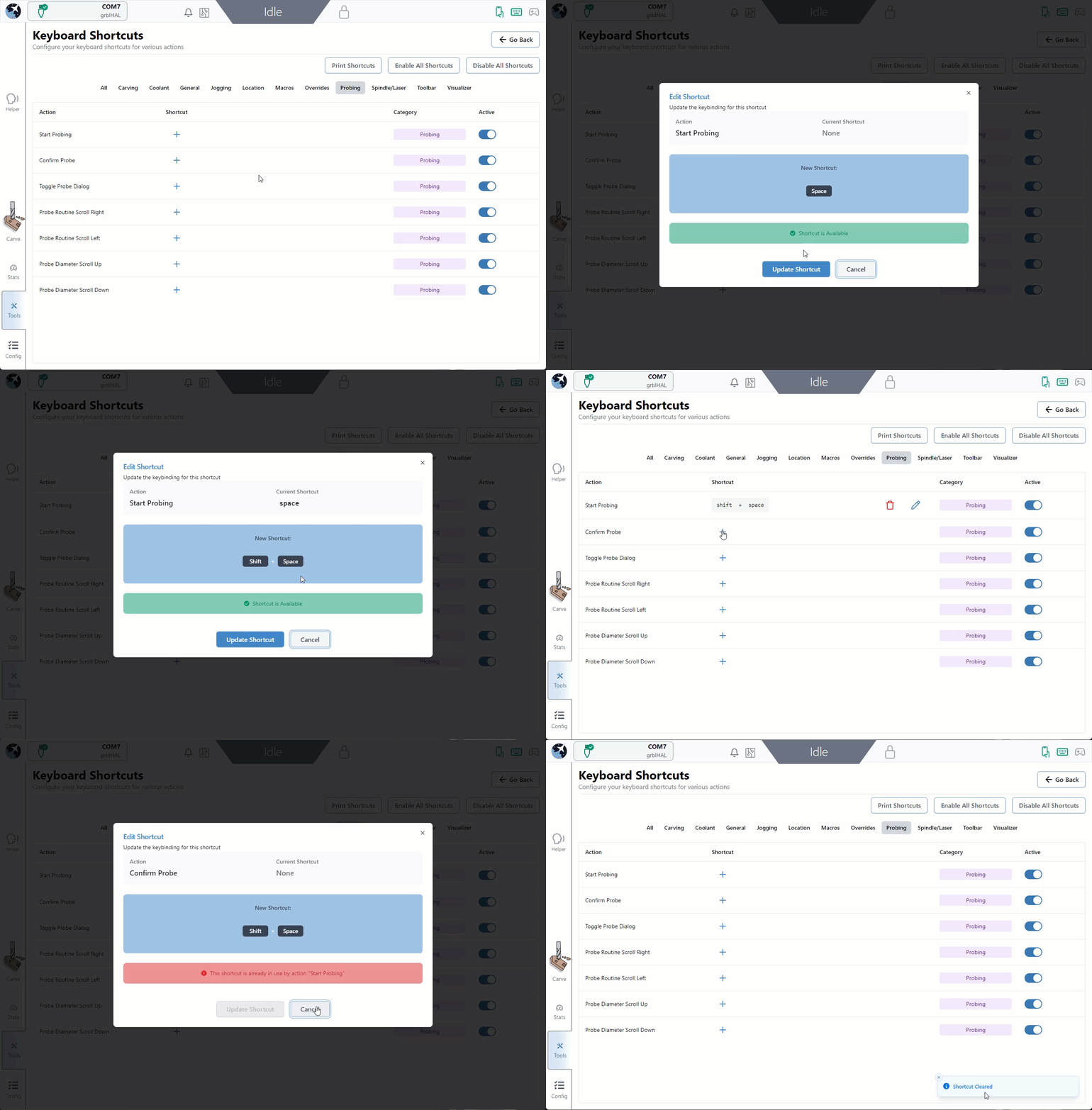
You can temporarily turn off specific shortcuts or disable all of them if you’re worried about mistakenly activating them by using the toggles in the ‘Active‘ column, clicking the ‘Disable All Shortcuts‘ button, or using the shortcut called ‘Toggle on/off shortcuts’.
Shortcut Printing
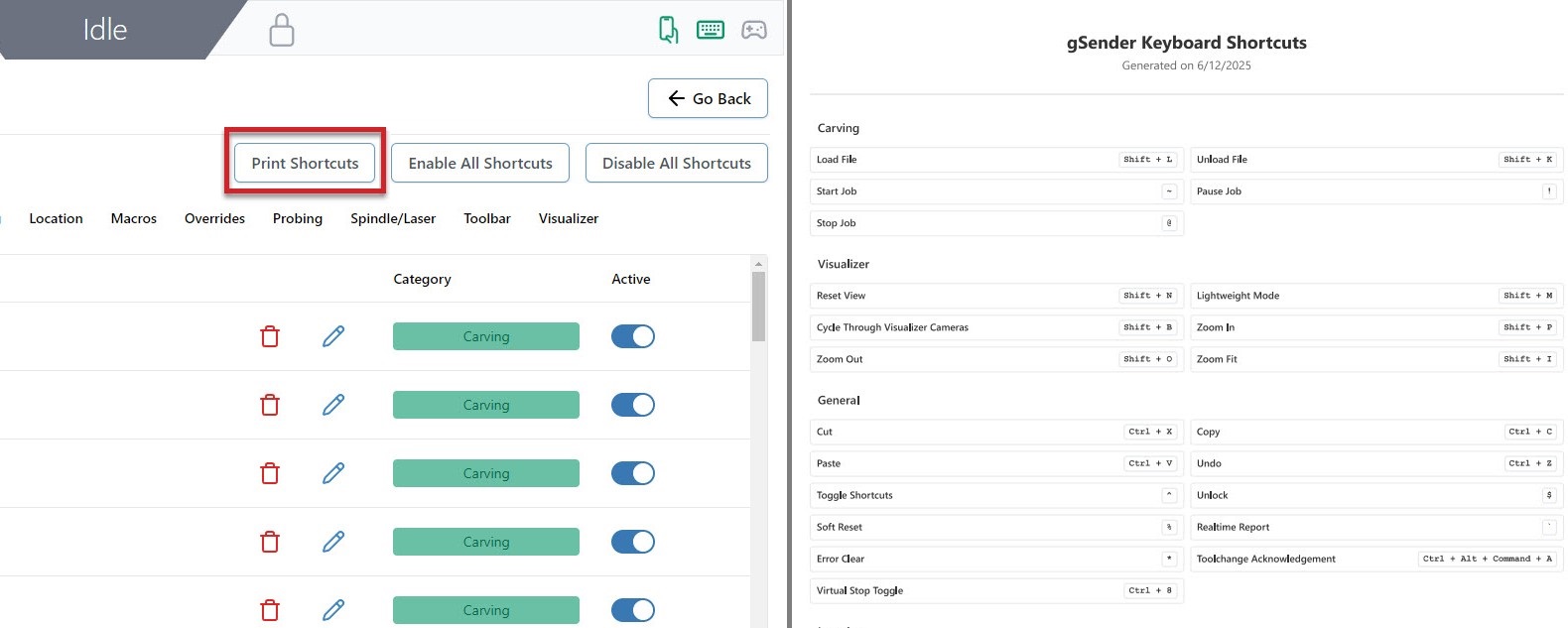
Find yourself forgetting how you’ve configured your keyboard or gamepad profile shortcuts? Hit the ‘Print‘ button to generate a simple PDF that you can store on a tablet or print on some paper to keep next to your CNC. This PDF will contain all the shortcuts you’ve created and what actions they’re assigned to.
Gamepad Shortcuts
Many users really love this feature since using a controller is convenient (especially for when you’re closer to your machine), inexpensive, and makes certain repetitive actions much easier. Common options are Xbox, PlayStation, and other third-party controllers available to buy online.
We have some pre-made profiles for gamepads we’ve already tested with gSender and you can still reference these if you have a different gamepad or want to make your own.
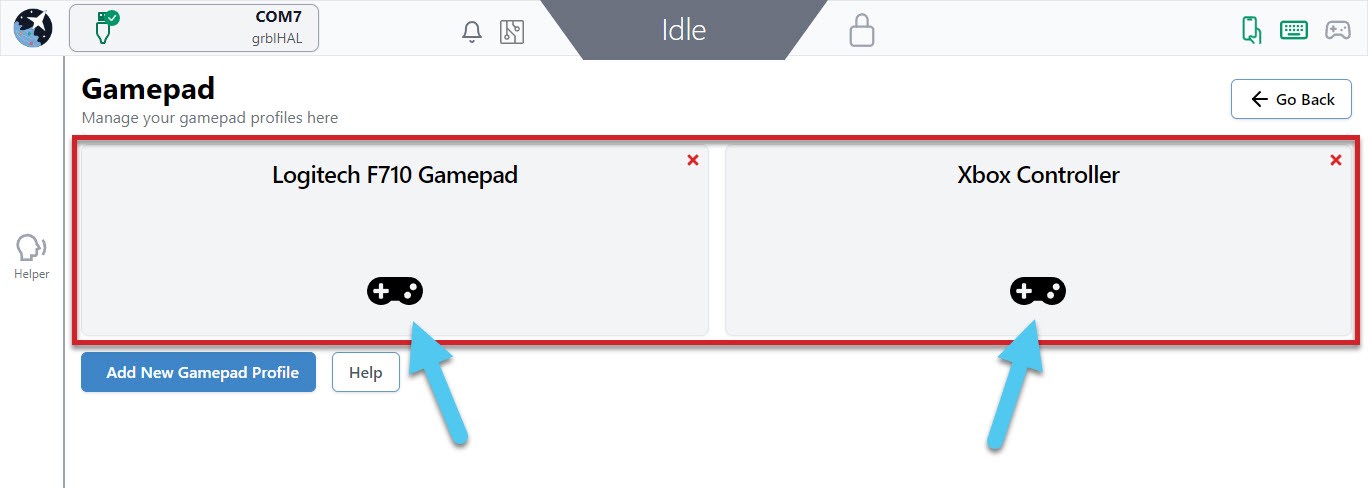
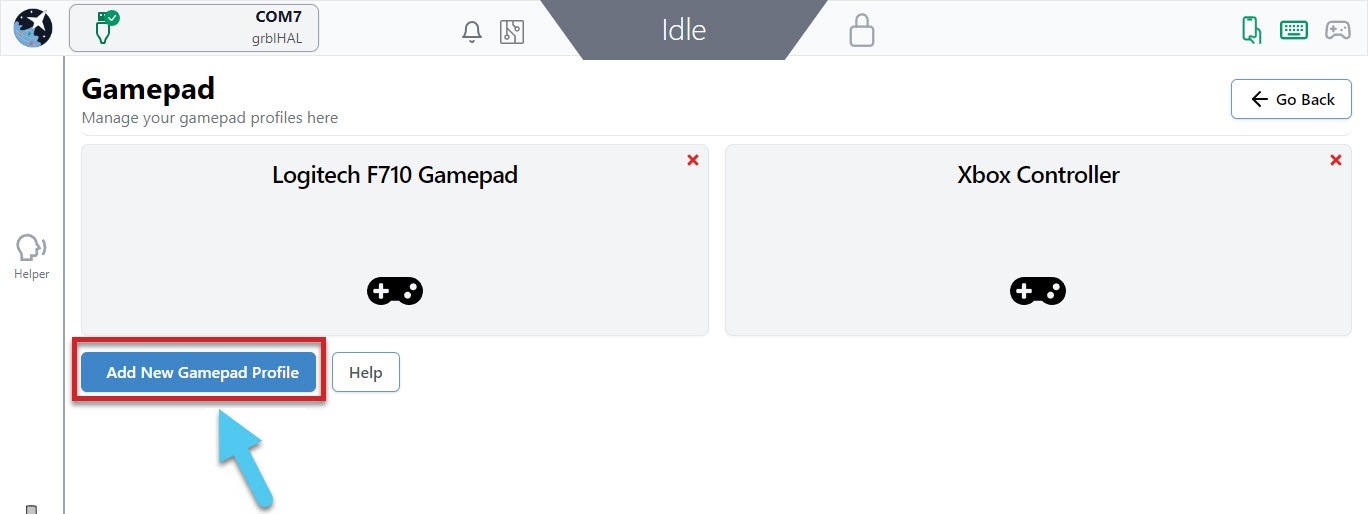
To create your own profile, connect your gamepad to your computer and click the ‘Add New Gamepad Profile’ button, then make sure the gamepad is recognized before beginning to assign actions to each button. Creating different profiles mean you can set up multiple gamepads if you’d like since they each have their own unique ID.
If you run into difficulty with getting a particular gamepad set up in gSender, consider:
- Some gamepads may require drivers to be downloaded so your computer can read the signals that the gamepad sends out.
- Go into the gamepad profile while it’s connected and click the Help button where you’ll be able to diagnose whether your gamepad is broken and sending out bad signals.
- Searching for documentation provided by the manufacturer (for example, Xbox or PlayStation).
Tested Gamepads
To better guarantee your experience using a gamepad in gSender, we’ve taken the time to test a shortlist of some common and affordable options that are easy to source. With community help, we hope to continue growing this list of officially tested gamepads which currently includes:
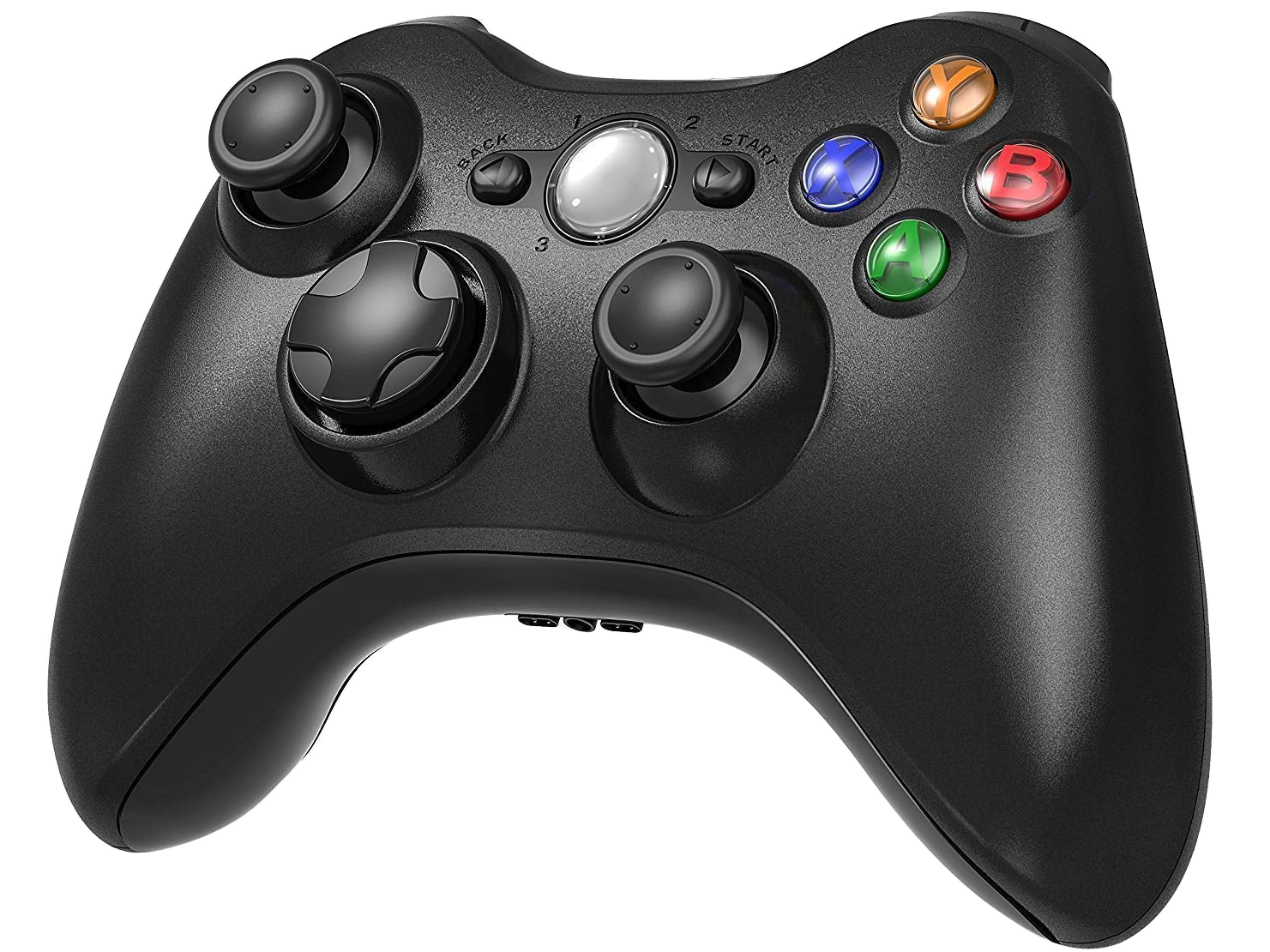 |
YCCTeam Xbox Controller
|
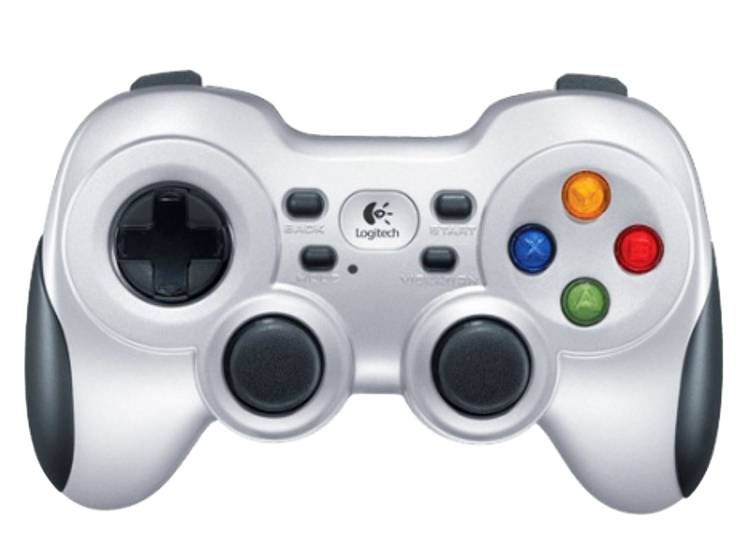 |
Logitech F710
|
Having a listed gamepad means you can both be more confident that your hardware will be compatible with gSender, as well as many of the ‘tested gamepads’ will have pre-made shortcut profiles built right in to save you time setting up your own.
Gamepad Setup
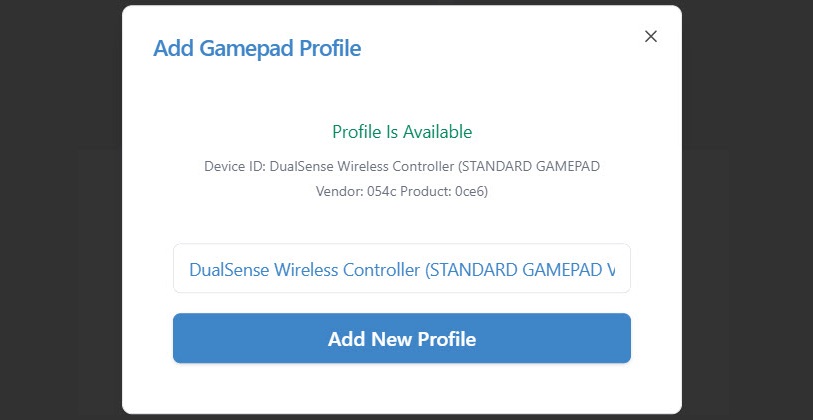
Hit the Add New Gamepad Profile button, connect your controller to your PC and press any button on it. gSender will identify and provide a profile if one is available. You can see in the screenshot below, it correctly identifies the DualSense Wireless Controller. If no profile is already tied to the controller, enter your profile name and hit Add New Profile.
Once you have a profile for your connected gamepad, click on that profile to edit it.
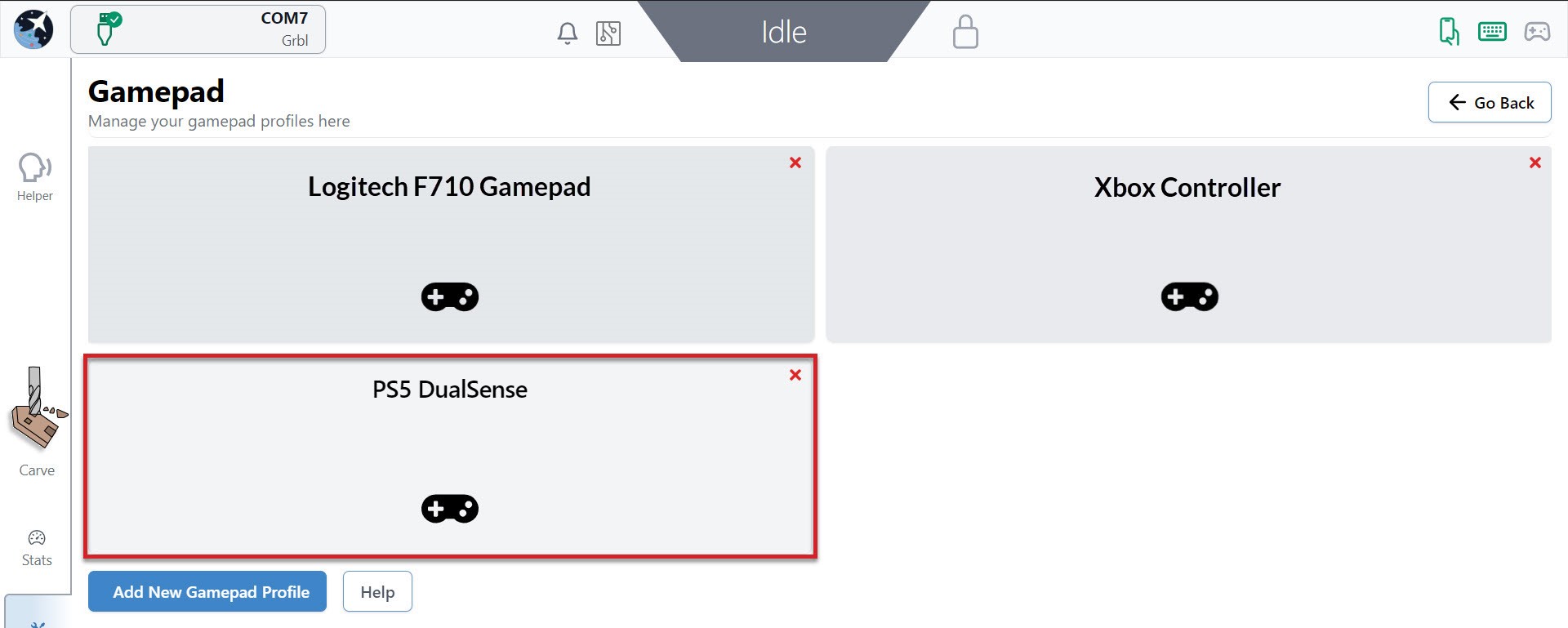
Inside a profile, you’ll be able to see if that specific gamepad is currently connected and be able to assign shortcuts to the two major groups: buttons, and thumbsticks.
Buttons are the most versatile in how they can be set up. Any button on your gamepad can be set up to:
- Activate an action
- You can assign a button as a ‘Second Action Button’ which acts similar to a ‘Shift’ key on your keyboard to allow you to create two-button combinations on your gamepad.
- You can also assign a ‘Lockout Button’ which acts as a safety lock for your CNC when controlling it with the gamepad. If you set up a lockout button, then no other buttons on the gamepad will work until you’re pressing on the lockout button. This stops from pressing buttons accidentally or if you dropped your gamepad on the ground.
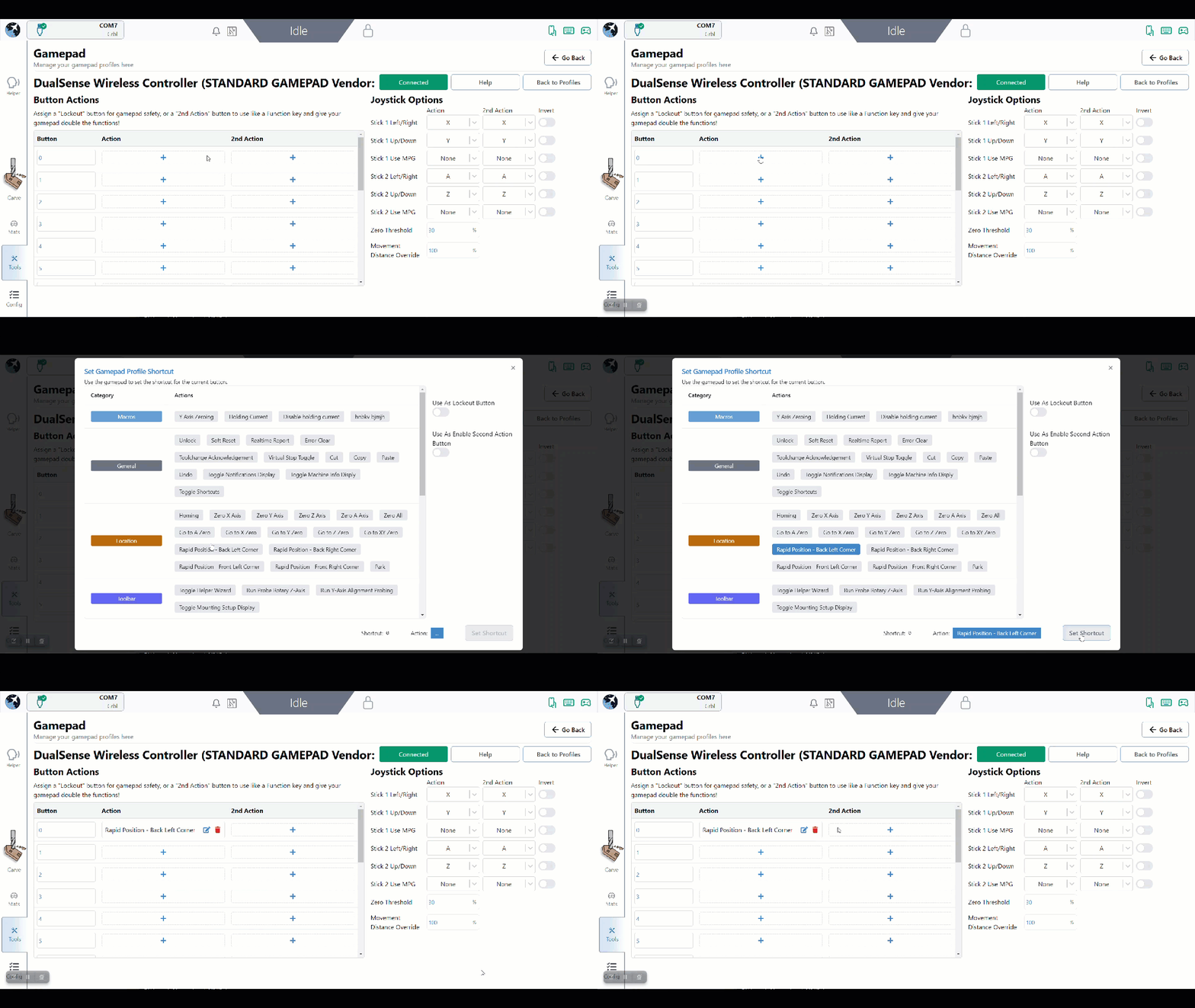
To add an action to a button, start by pressing the button on your gamepad to see which one on the list lights up green. In this case, the X button lit up button 0. After pressing the + symbol in the Action column, you will see a list of actions you can map to that button. In this case an action was added for Rapid Position – Back left corner, so now when the X button is hit on the gamepad, gSender will move the CNC to the back left corner!
You can repeat these steps to keep adding more shortcuts to your gamepad, this also includes:
- If you’re having difficulty remembering your gamepad buttons, you can click on the black box label and rename it to whatever you’d like.
- The ‘2nd Action’ column will allow you to give each gamepad button a second shortcut action once you set up a ‘Second Action Button’. Do this by clicking the
+symbol in the Action column of the button you want to use, then clicking the ‘Use as Second Action Button’ toggle on the right side. - Assign a ‘Lockout Button’ in a similar way but by toggling the ‘Use as Lockout Button’ toggle on the right side.
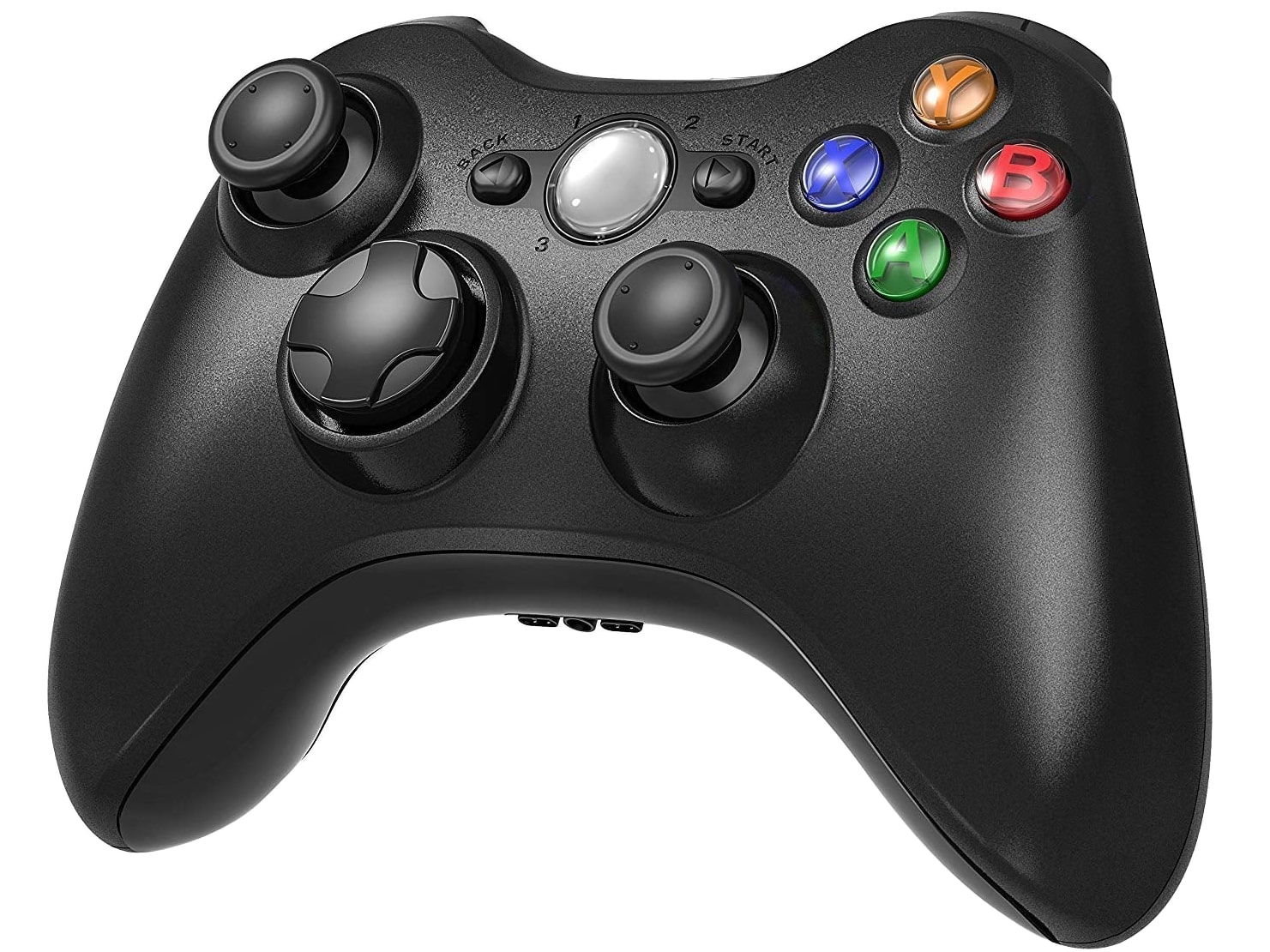
Thumbsticks are set up to be used for jogging because of the ability to move them a little or a lot, which is different from buttons which can only be clicked on or off. This works well because most gamepads tend to have 2 thumbsticks (like the Xbox controller shown above), meaning you can use one to jog in the X and Y, and the other to jog in the Z and A (if your machine has a rotary axis). For gamepads that don’t have thumbsticks this is still fine because buttons can also be set up to jog.
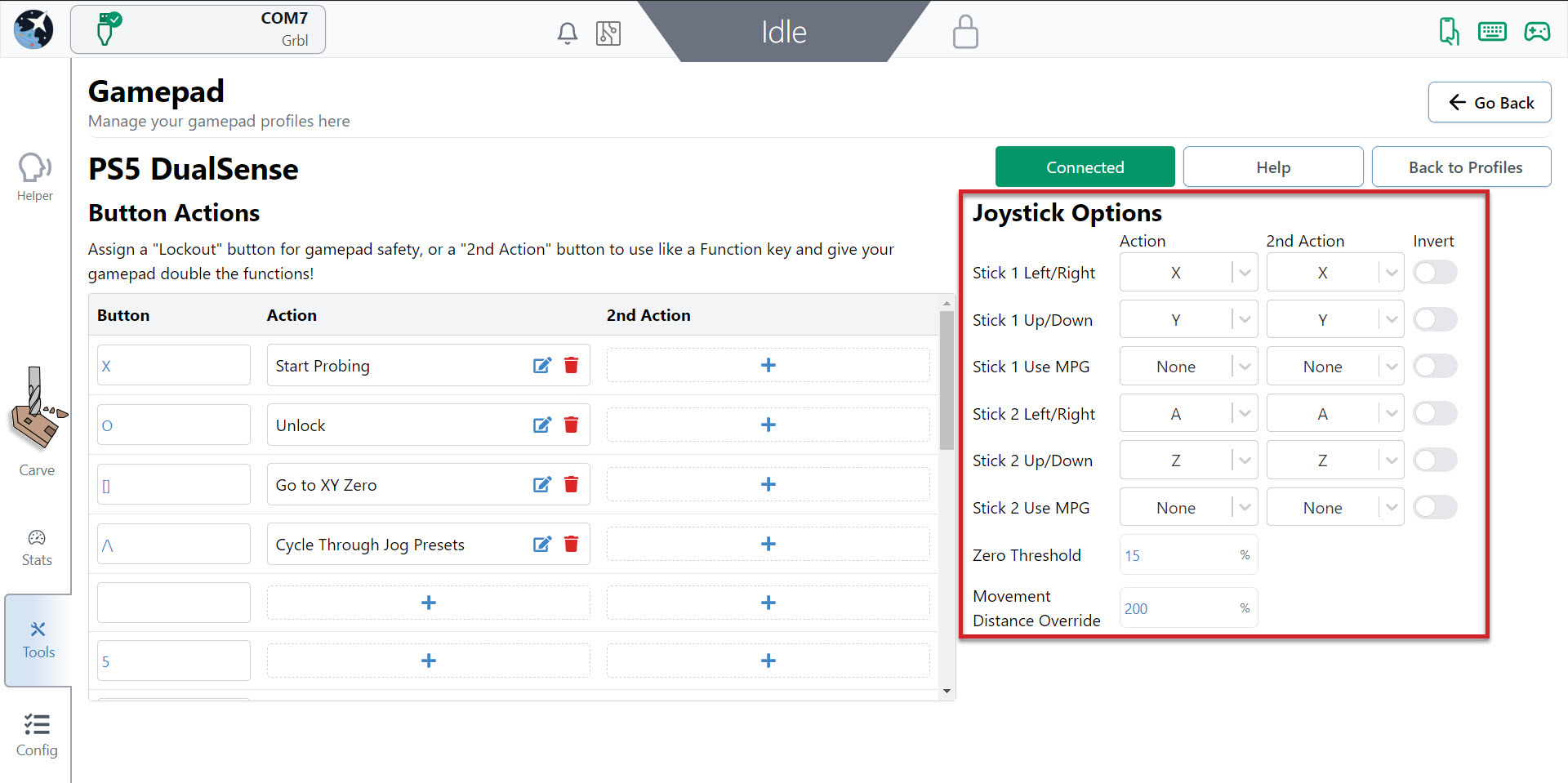
On the right side of the gamepad profile window, you can see the options for what axis you’d like to move with your gamepad thumbsticks. Similar to setting up buttons, you can move the thumbstick to see which one lights up, and you can also assign a ‘2nd action’ if you’d like. In this example, Stick 1 controls the X-axis left and right, and the Y-axis forward and back while Stick 2 controls the A-axis with left/right and the Z-axis with up/down.
Once you’ve set up your thumbsticks, you’ll find you can push them any amount and the distance you push them will decide the speed that axis moves at. If you’ve set up both the left/right and up/down, you can also mix these to make continuous diagonal movements to get to your final location easier. You can also flick the thumbstick once and the CNC will move one increment, according to the rapid/normal/precise movements you have set up for Jog Controls.
- If you find your thumbstick is moving the axis in the wrong direction, use the ‘Invert‘ checkbox to correct that
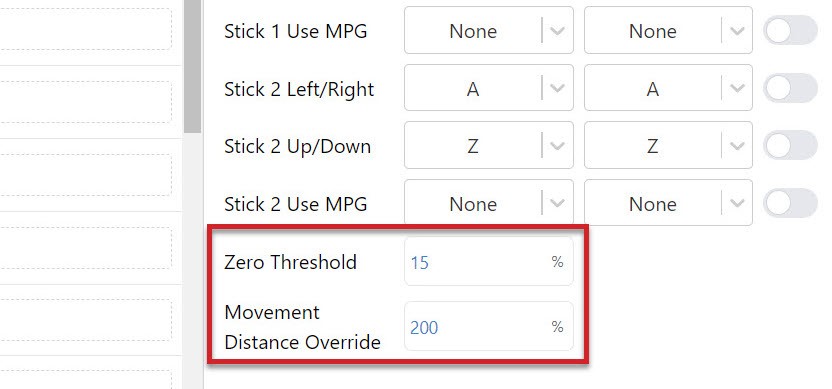
- If you let go of the thumbstick and the axis keeps moving, increase the ‘Zero Threshold‘ amount since your gamepad might be older and more worn out
- If you get jittering while moving with the thumbsticks, or you let go of the sticks and it takes a while to stop moving, you might want to adjust the ‘Movement Distance Override‘ value until you get smooth movement on your setup
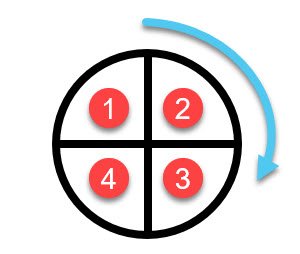
Another cool feature is the Use MPG selection. If you map one of your thumbsticks to an axis with MPG selected, it will automatically grey out the other stick selections. Now you can rotate your stick in any direction and for each quarter rotation, your axis will move once, according to your preselected Jog Controls.