

This page covers all the advanced features of gSender such as shortcuts, macros, workspaces, calibration tools, controlling spindles, rotary axes, lasers, coolant, and more. Remember, you can always quickly navigate the page by clicking the headings in the ‘Page Contents’.
Calibration Tools
The Tool Tab is always available near the bottom left of the screen. Here you’ll find some tools that you can use to make finer adjustments to your machine for improved performance:
- XY Squaring
- Movement Tuning
- Surfacing
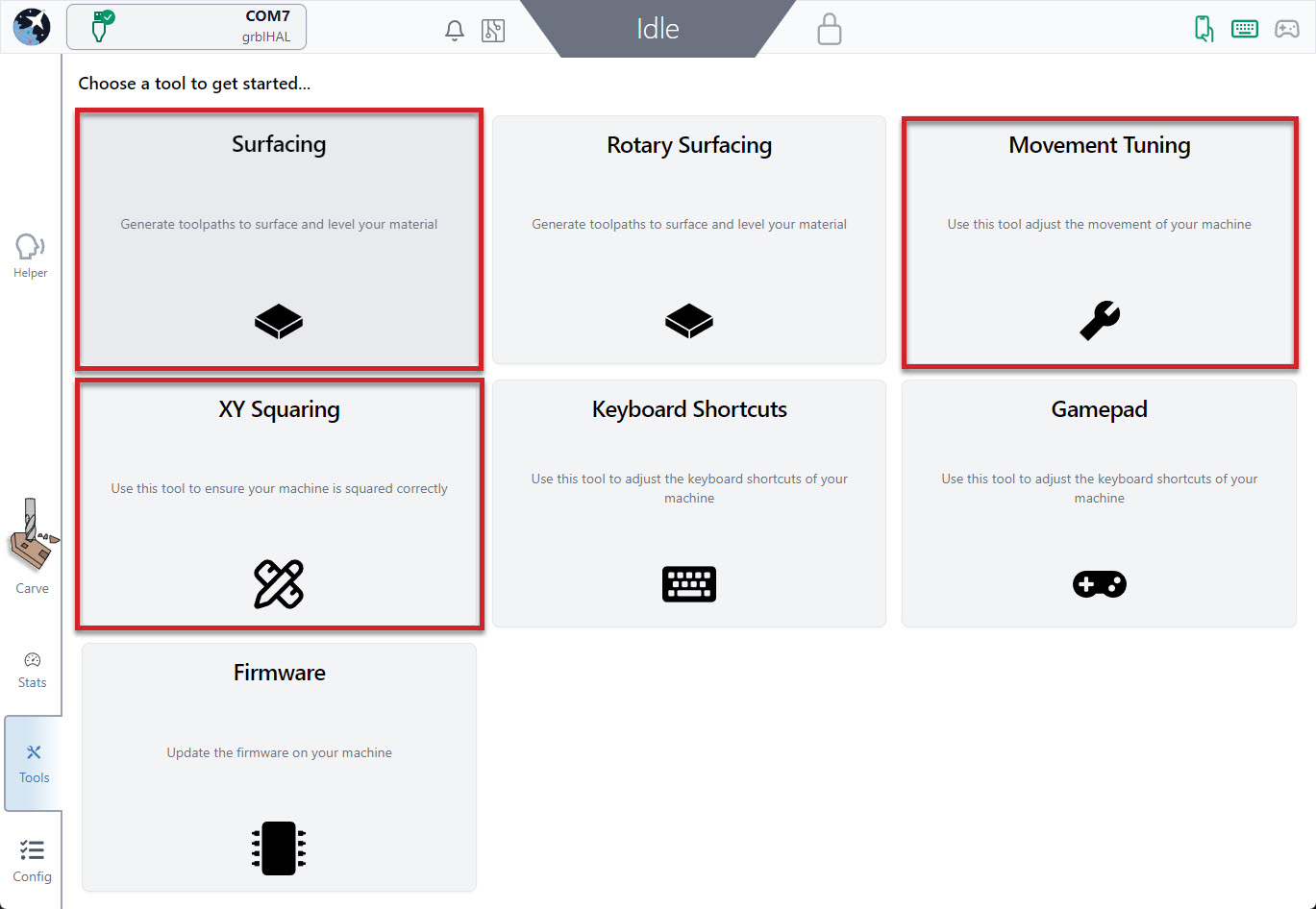
XY Squaring
When setting up any CNC, like when mounting a LongMill to a table, usually a squaring step is needed to ensure cuts don’t come out skewed. This Software Wizard (step by step guide) is a great asset to help speed things up by turning a typically ‘guess-and-check’ process into some easy measurements and behind-the-curtain math in 3 main steps:
- Mark 3 points on your machine to make a triangle (the larger the triangle, the better)
- Measure & enter the distance between the triangle points
- See the results and adjust accordingly
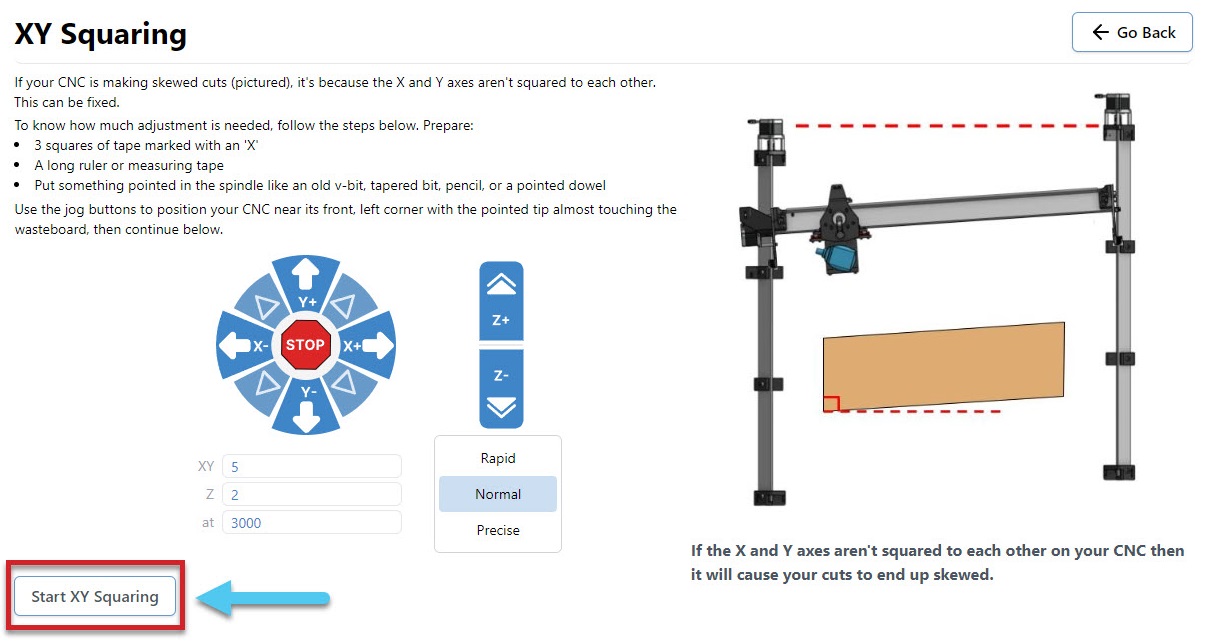
You will need the following:
- Ruler or measuring tape
- Tapered bit or V-bit
- 3 tape pieces marked with an ‘X’
- Jog the machine to the front left corner, with the bit raised slightly over the surface of your wasteboard
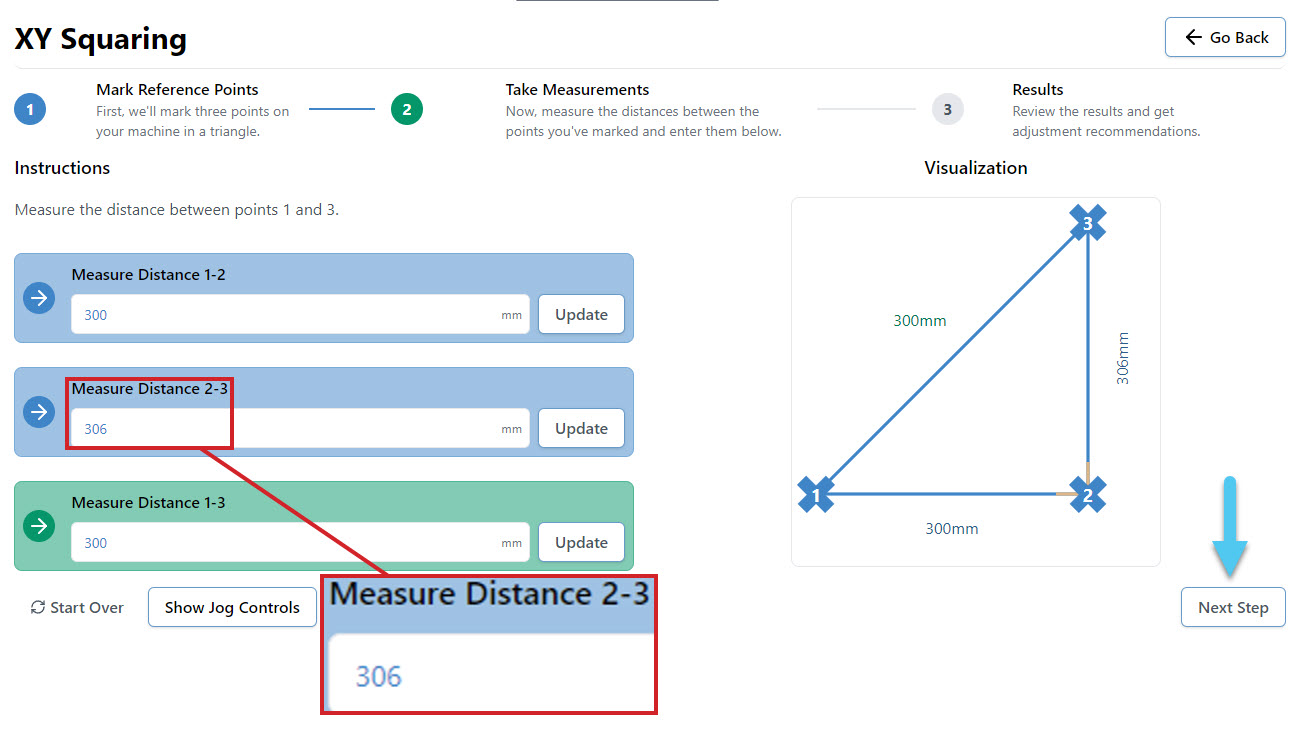
- Mark the point with tape marked with an X, and move the machine as directed (Default 300mm)
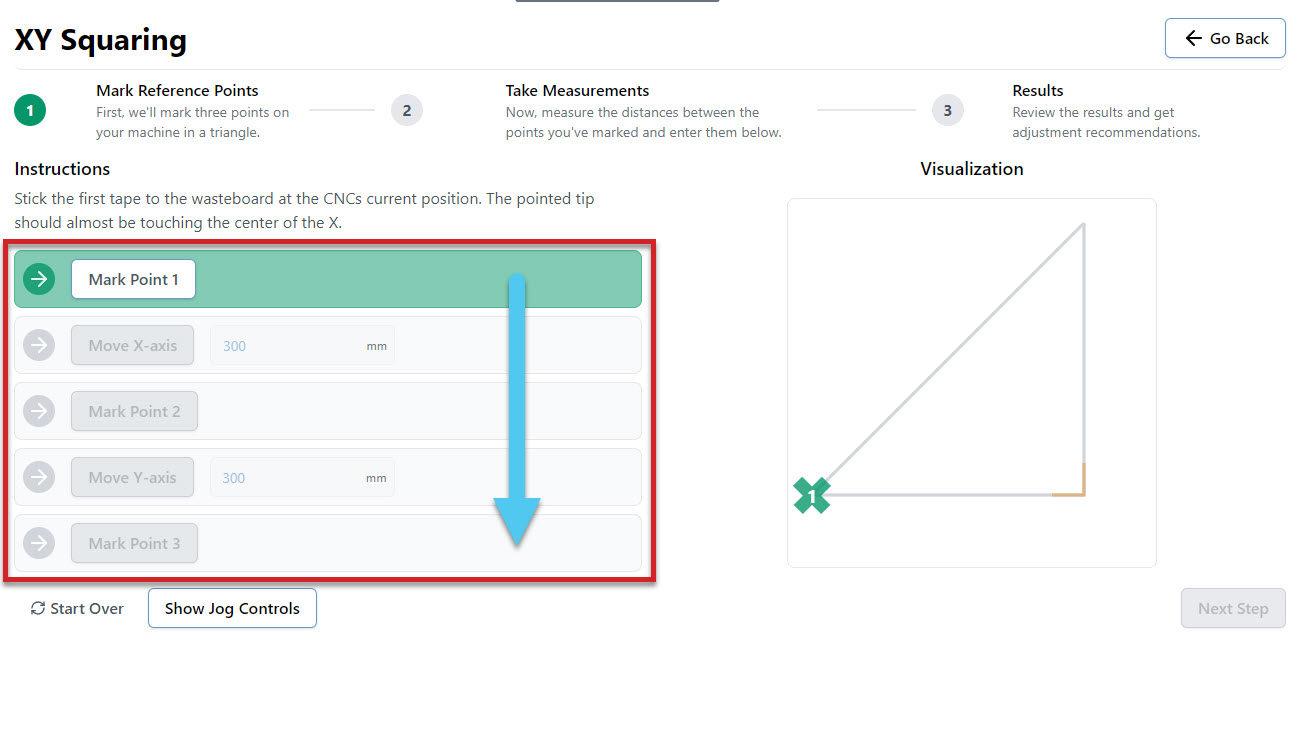
- Continue to mark points and move the machine until all boxes are complete and your triangle is marked
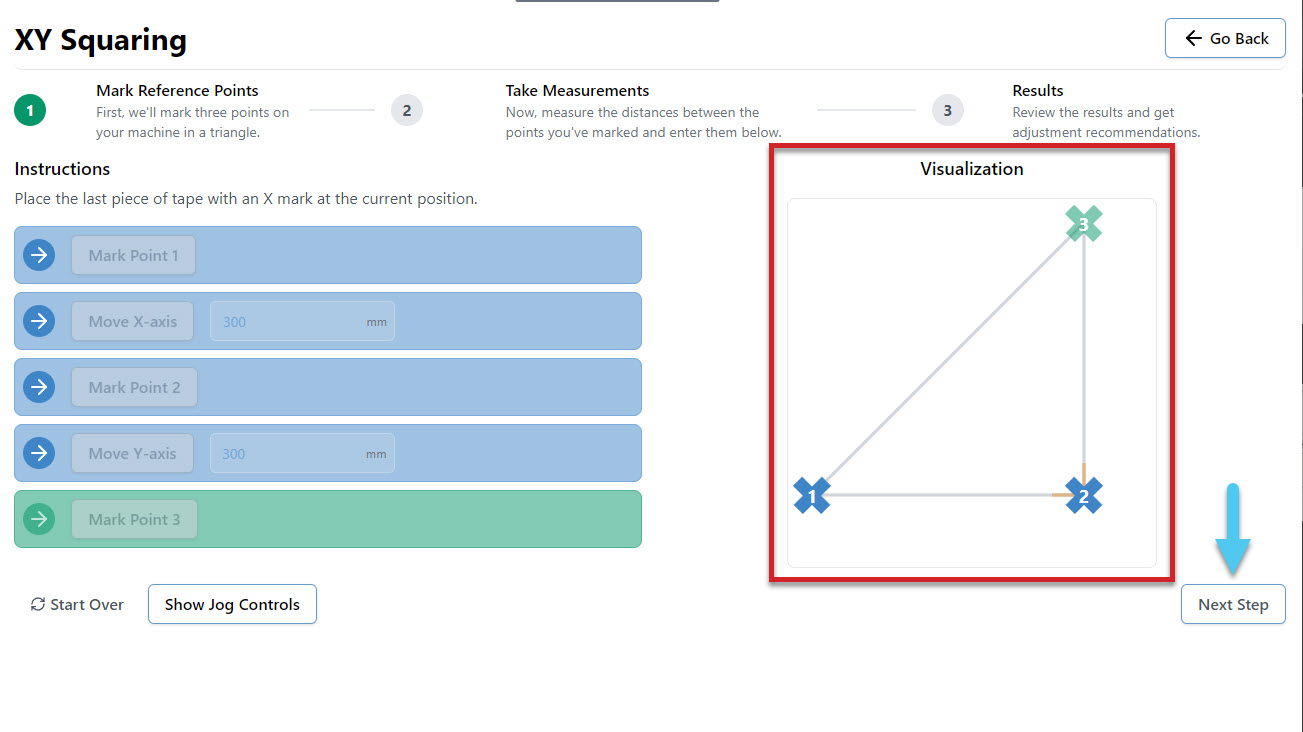
- Measure the distance between each X and enter the values into the 3 boxes. For instance you might measure 306mm, instead of the expected 300mm. Hit the Confirm button to move to the results page.
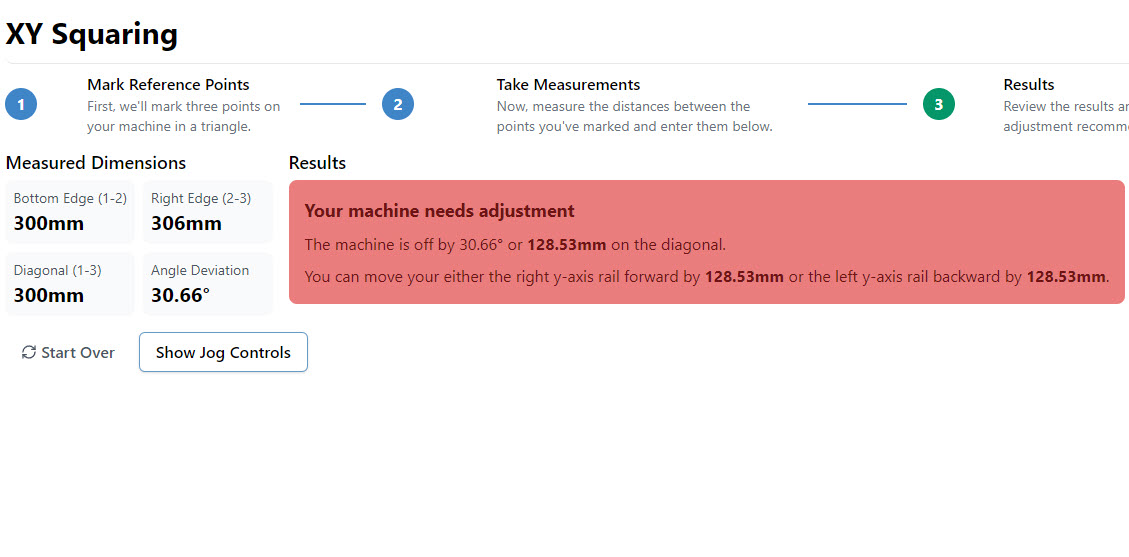
- At the end you’ll be told how square your machine is and whether you need to take action to adjust it further or if it’s close enough that you can leave it. The squaring tool also keeps an eye out for if your steps/mm (axis travel resolution) are off and can adjust those too.
You can also try watching how this process works in this user-made video by SparksTech!
Movement Tuning
Another Software Wizard (step by step guide) found in the Tool tab. This one is designed to help fine tune how much your motors turn to improve the accuracy of your machine movements. This is done through modifying the EEPROM settings stored on your CNC. You can tune the X, Y and Z axes individually.
You will need:
- Marker or tape
- Measuring tape
- Jog your machine to the middle of whichever axes you choose to tune, so that there is enough room to complete this procedure. For example, on the X-axis you would jog halfway on the X-axis rail
- Select what axis to tune on the drop down menu
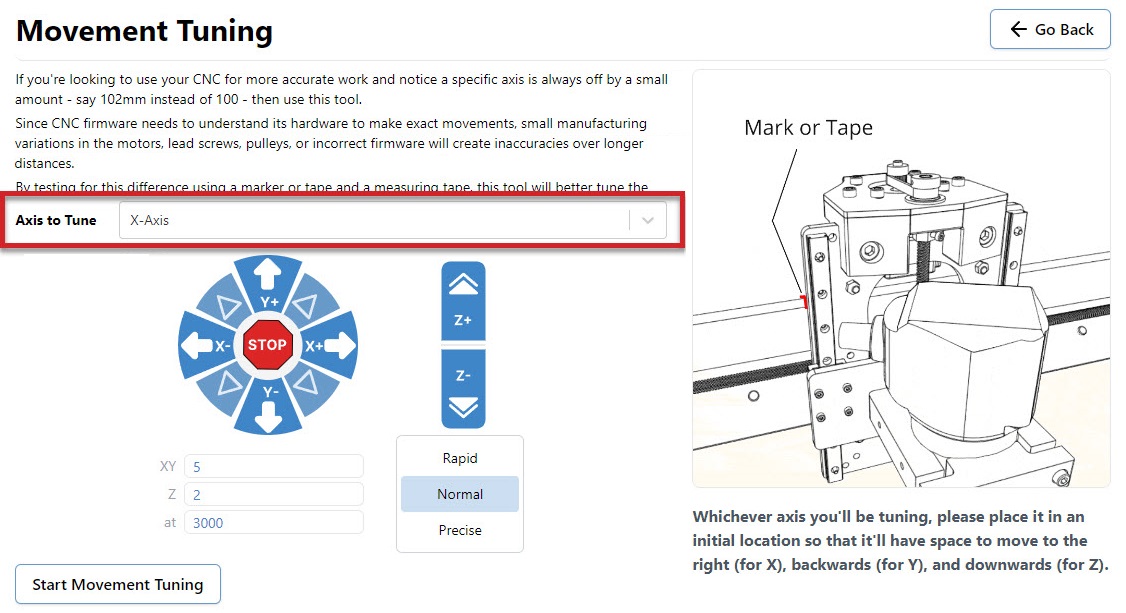
- Mark down the starting location as a reference point on the machine. For example the X-axis tuning references the edge of the XZ gantry on the X rail.
- Move the axis a chosen distance (Default 100mm)
- Measure the distance between the starting location and the finishing location
- Enter the measured value into the Set Distance Travelled box
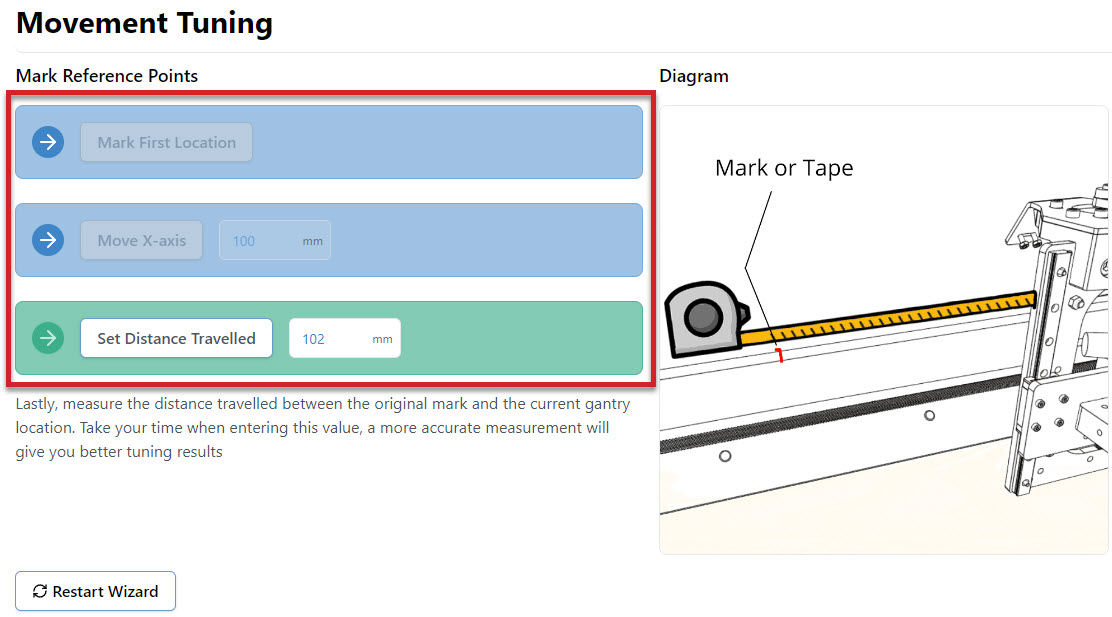
- You can now change the EEPROM setting if recommended by the procedure by pressing Update Steps-per-MM. This will bring up a popup that explains the change about to be made, and allows you one last chance to cancel the update.
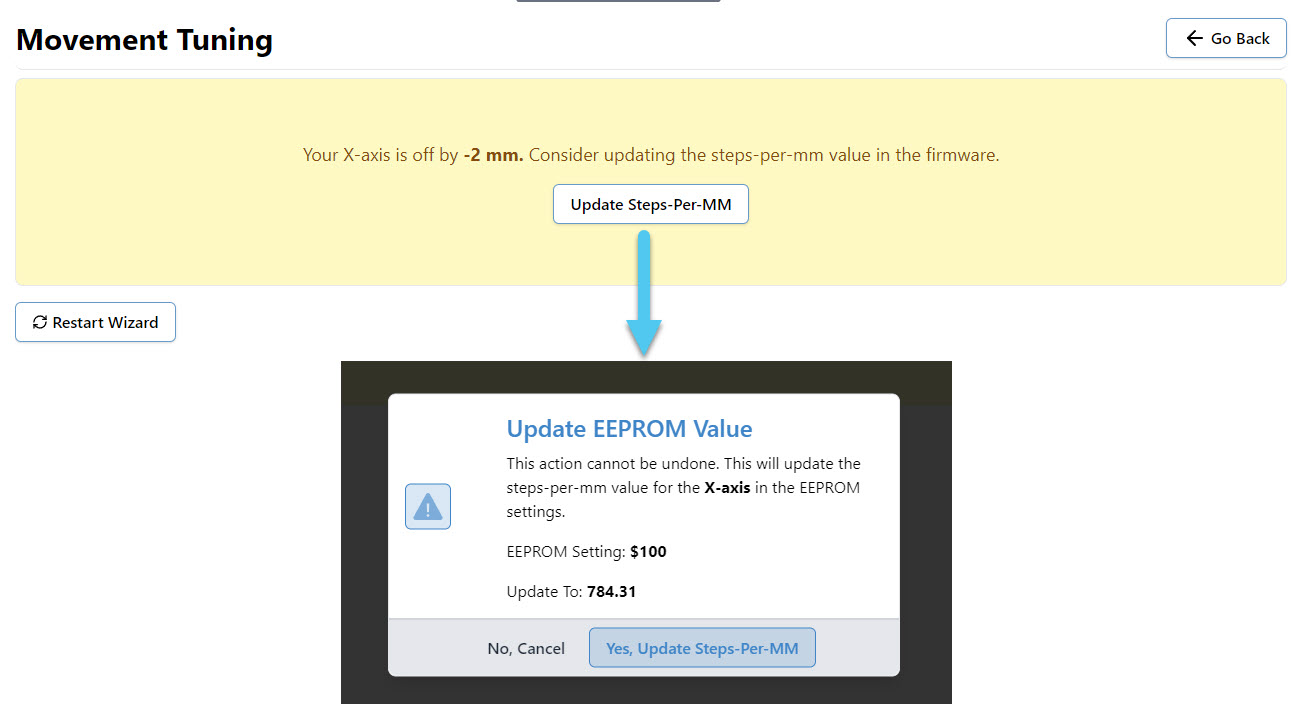
- Repeat the procedure for each axis you wish to tune
Surfacing
Surfacing the wasteboard of your machine or any project or blank material, can easily be done right inside gSender from the Tools tab! This saves the hassle of drawing rectangles in your CAD/CAM program and moving files around until you get the settings right. It’s also great for creating a perfectly flat surface of your starting materials, just like a jointer or surface planer would. You can also use the Rotary Surfacing Tool if you are wanting round stock off a rotary axis.
If you plan to use this tool to surface your wasteboard or larger pieces of material, some extra advice we’d give is to remove any accessories that might get in the way of your machine travelling to its limits as well as have a good vacuum on hand because surfacing can get really messy.
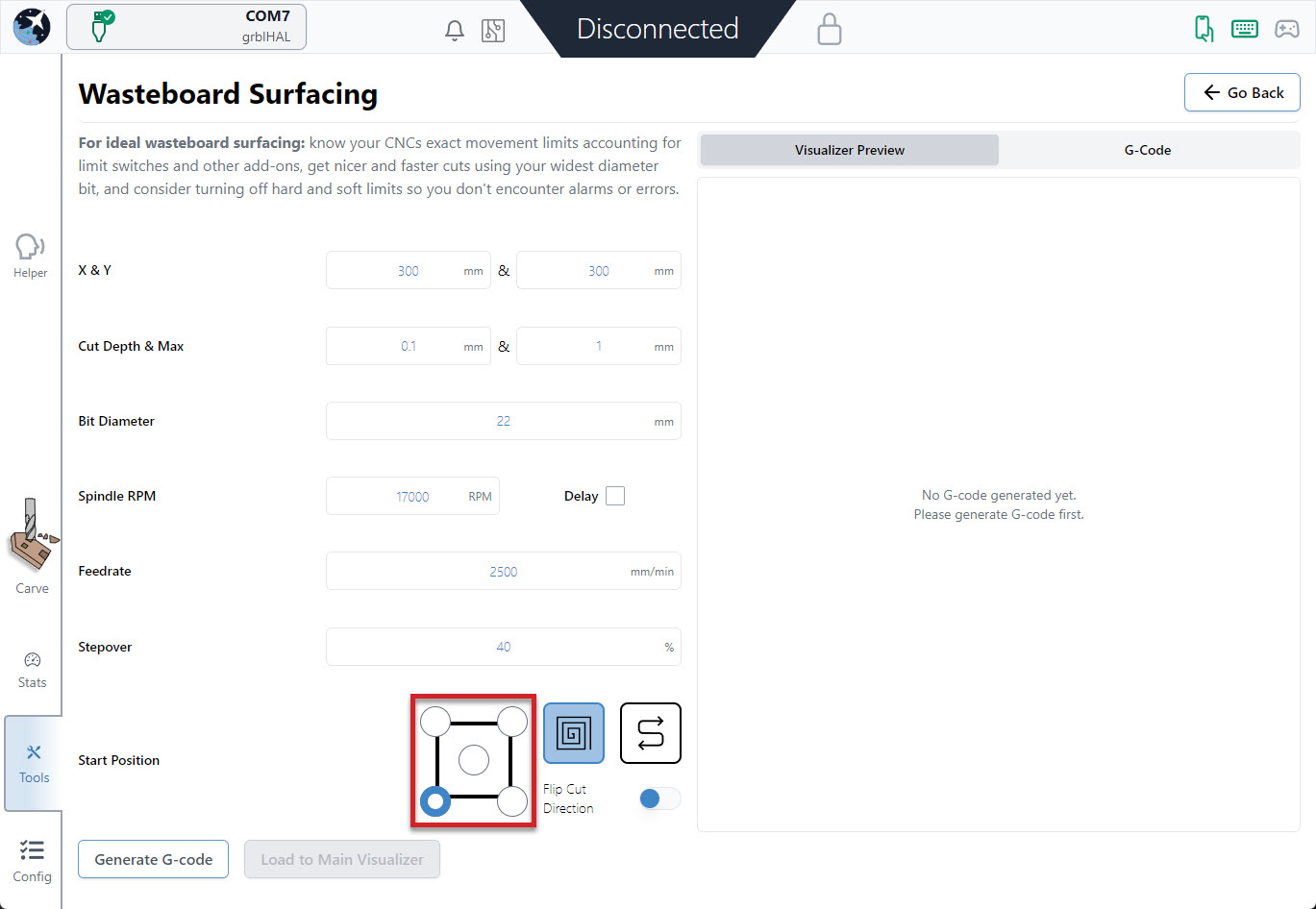
- Start by entering the settings you’d like to use to generate your surfacing job on the left side:
- X & Y: decides the cutting size (width and depth) you want to surface. If you’re surfacing your wasteboard, use the manufacturer’s spec on max machine travel or manually jog to the limits to cover the full cutting area, or if you’re surfacing a piece of material then you can use a measuring tape.
– AltMill: 1265mm (49″) x 635mm (25″) or 1251 (49″)
– LongMill MK2: 818mm (32.2”) or 1278 (50.3”) x 366mm (14.4”) or 866 (34.1”)
(if using limit switches, remove about 8mm/0.3” in X and 11mm/0.43” in Y)
– LongMill MK1: 320mm (12.6”) or 805 (31.7”) x 344mm (13.54”) or 844 (33.23”)
(if using limit switches, remove about 35mm/1.38” in X and 24mm/0.94” in Y)
(if using magnetic dust shoe, remove about 34mm/1.34” in X)
– Mill One: 235mm (9.25”) or 257 (10.1”) x 185mm (7.28”) - Cut Depth & Max: describes how deep you want to cut per pass and the total depth you want to cut down. For larger surfacing bits usually you should keep cut depth below 1mm, max depth should be increased to a couple millimeters if you think your material is very warped.
- Bit Diameter (typically 6 – 25mm): make sure you have the right bit for the job like a surfacing tool or a large, flat end mill since this will give you a better surface finish.
- Spindle RPM (default 17000): only applies if you have an automatic speed control, otherwise set this manually on your router.
- Feed rate (default 2500mm/min): influenced by the RPM, step over, bit diameter, and cut depth. Luckily if you set it incorrectly you’ll be able to override it during the job since surfacing can cause burning when cutting too slow or can have worse surface finish when cutting too fast.
- Stepover (default 40%): sticking around 40% tends to be a good balance between speed (using a higher %) and better surface finish (using a lower %).
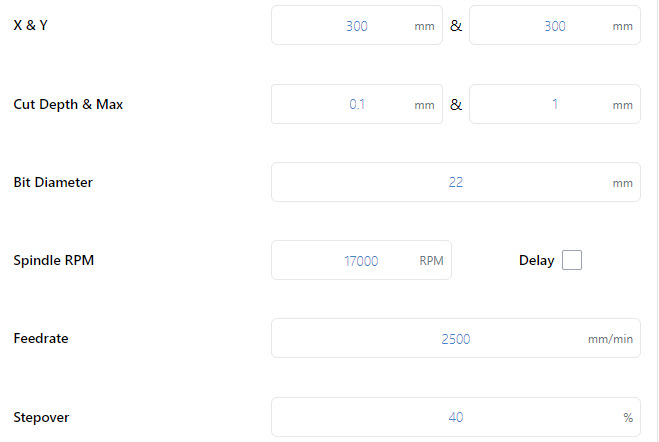
- X & Y: decides the cutting size (width and depth) you want to surface. If you’re surfacing your wasteboard, use the manufacturer’s spec on max machine travel or manually jog to the limits to cover the full cutting area, or if you’re surfacing a piece of material then you can use a measuring tape.
- Decide where you want to start surfacing from by clicking any of the corners or the center. In most cases the front, left of the machine is the most convenient, and is the default setting. You can also select a surfacing pattern of spiral or zig-zag. The spiral will only cut from the inside-out if the start position is the centre. If you toggle the flip cut direction, the spiral will cut conventional instead of climb, and the zig-zag pattern will cut vertically instead of horizontally.
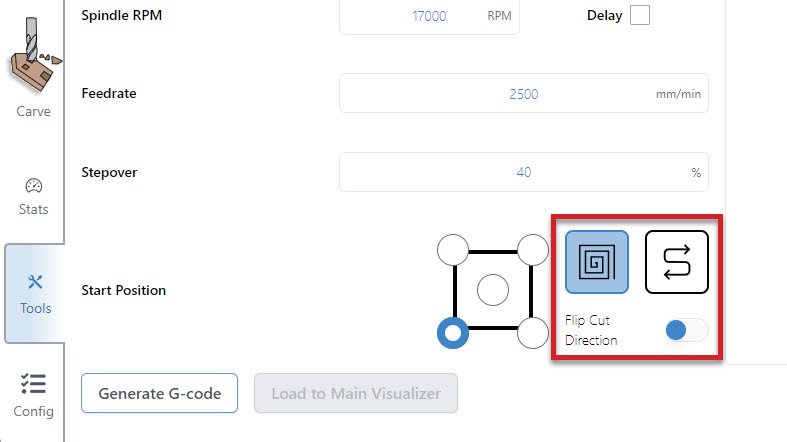
- Press ‘Generate G-code‘ and check your surfacing tool path using the ‘Visualizer Preview’ tab. You can also see the raw g-code using the ‘G-code Viewer’ tab and can copy and save it to a g-code file if you’d like to use it again later.
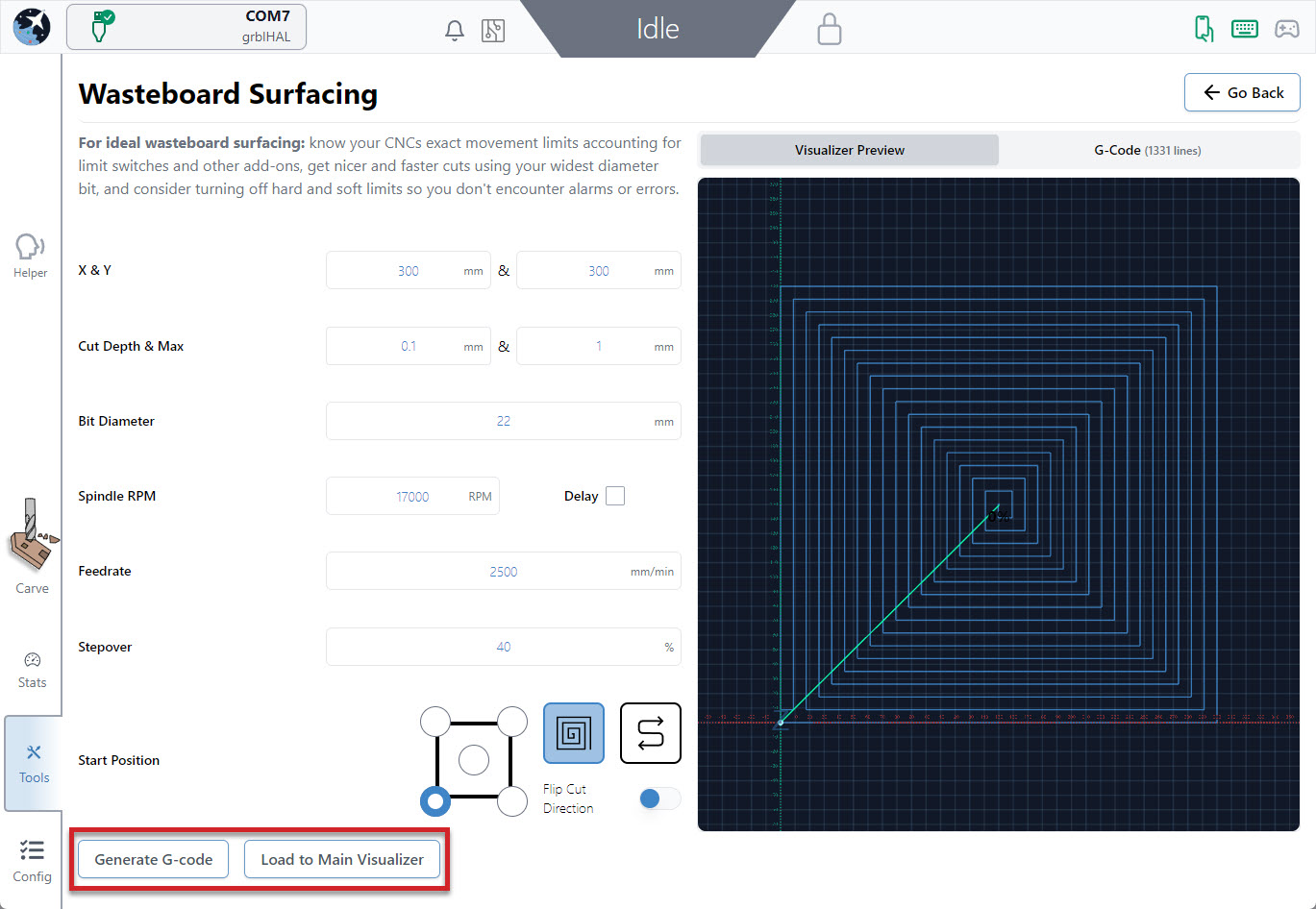
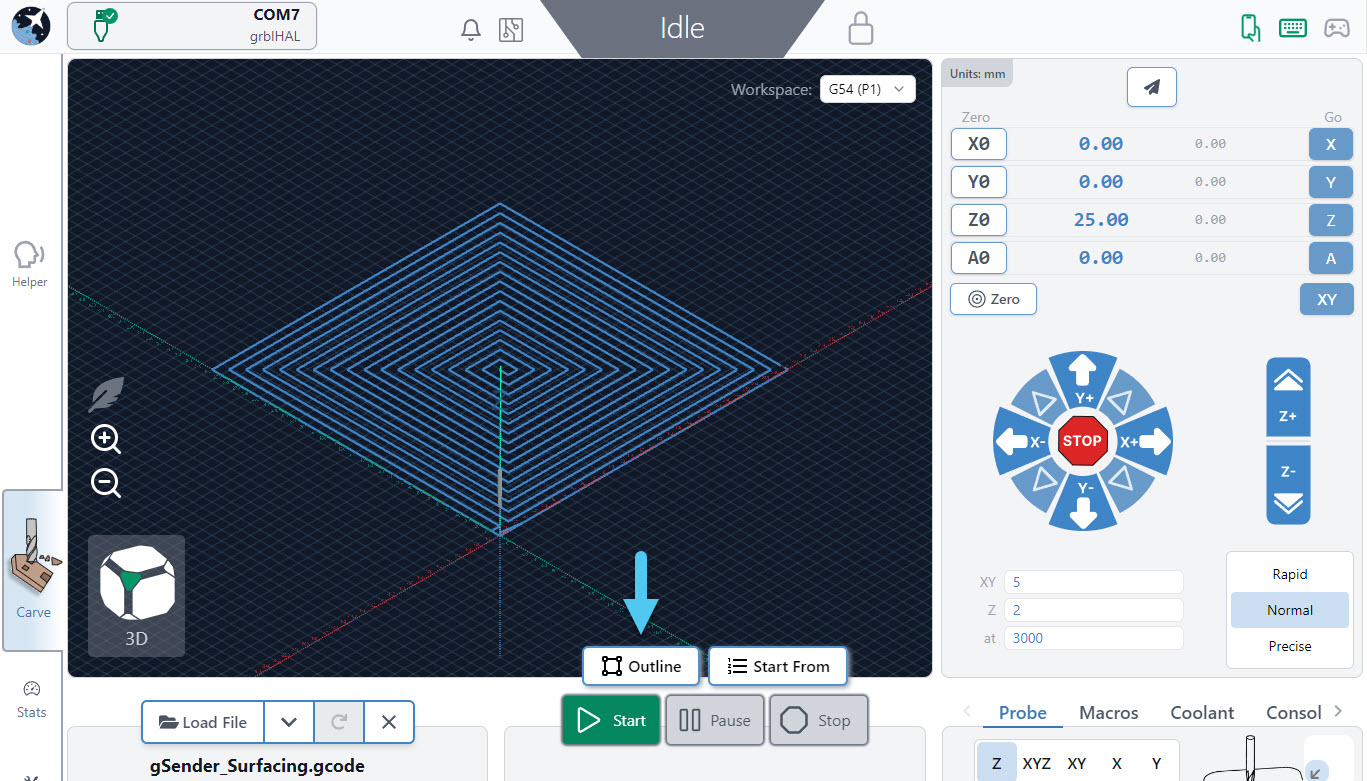
- Press ‘Load to Main Visualizer‘ to bring the g-code into gSender’s main screen. Make sure that you jog to the starting point and set your zero in the right place before starting the job. You can also press the ‘Outline‘ button as an easy way to check that you’ll be surfacing where you expect and if you find the dimensions aren’t correct you can always re-open the surfacing tool, tweak the size, and try again. Feel free to start the job whenever you’re ready!
Wireless Control
If you’ve ever wanted to run your CNC without being stuck right next to it, this is the feature you’re looking for. Once enabled, it will allow other devices on the same internet network to connect to the main computer that’s running your CNC. These ‘remote devices‘ can be anything that can connect to the internet and run a web browser, meanwhile the ‘inline computer‘ plugs into your CNC with a USB or Ethernet cable and will receive commands over the internet from the remote device.
This feature is handy if you’d like to:
- Load in a file from your design computer outside your shop then run it on your computer inside the shop
- Use a tablet as the primary means of controlling your CNC rather than a mouse and keyboard
- Use a phone for occasional use when jogging or running functions
- Leverage a mini PC or Raspberry Pi as the inline (tethered) computer for cheap, fanless, and reliable operation without taxing them with a display, keyboard, and mouse (though this still doesn’t create a fully ‘headless’ setup)
Before diving into the setup, here are some quirks and warnings that are important to keep in mind:
- Both systems need to be on the same internet network to work
- The ‘remote device‘ needs to be able to run a web browser
- The setup process can be a little more involved, so we don’t advise using this feature if you’re not confident with troubleshooting your own setup
- You may need to be an Administrator of the inline computer to make the changes needed
- If you intend to use this feature for more important projects or with expensive tools or materials, keep in mind that it will always be inherently less reliable than a hard-wired connection
- This feature is NOT intended to enable use of your CNC while AWAY FROM YOUR WORKSHOP. A CNC should always be run while you or another knowledgeable operator is in the vicinity to ensure safe machine operation and be able to react if intervention is required. CNCs can cause fires from electronics, material friction, and can have other safety hazards if not properly monitored.
Wireless Setup
All setup steps need to happen on the inline computer (the computer you’ll have connected via USB or Ethernet to your CNC) and have been simplified to mostly happen within gSender:
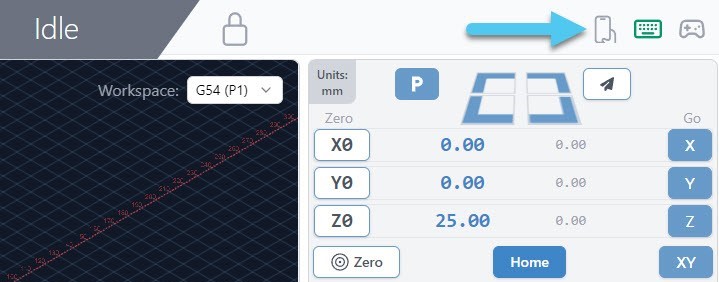
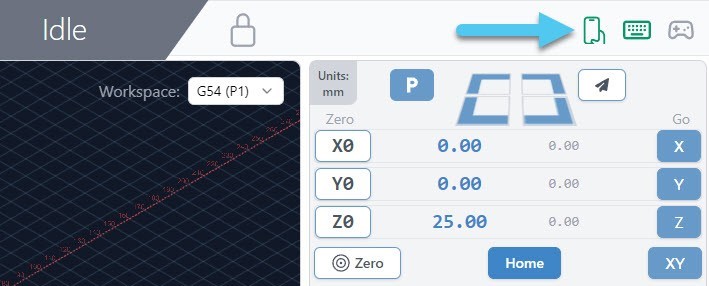
- To begin, click the cell phone icon on the top right of the screen.
- This is where wireless control is set up. First, click the ‘Enable Wireless Control‘ toggle. Second, you’ll see the boxes for ‘Addr’ (address) and ‘Port’ become available. The default values for these should work but if you have a particular setup or require troubleshooting then consider changing these.
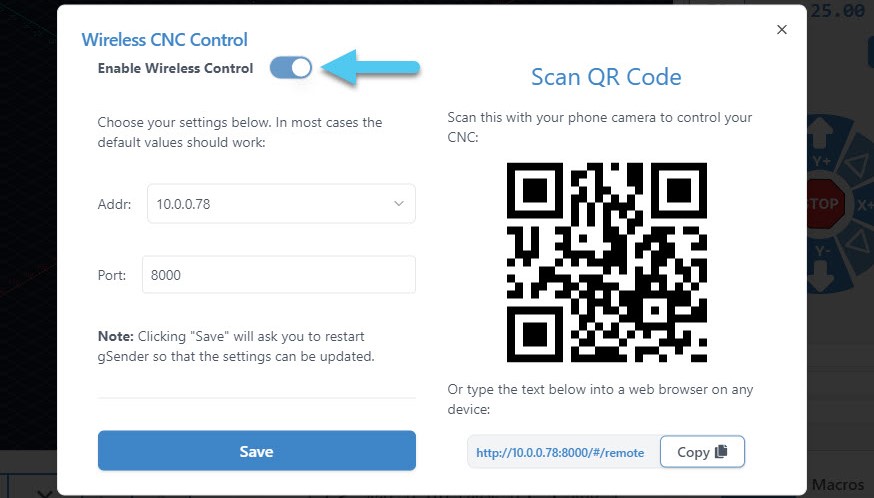
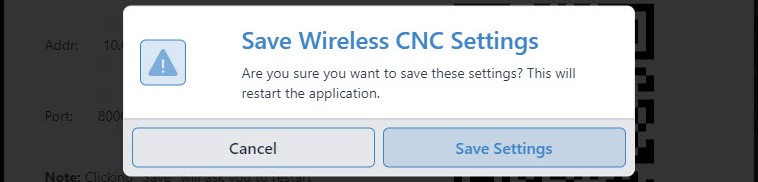
- Once you click the ‘Save’ button, gSender will automatically restart in order for the changes to take place.
- You’ll know the setup was successful if gSender restarts and the remote connect icon is green.
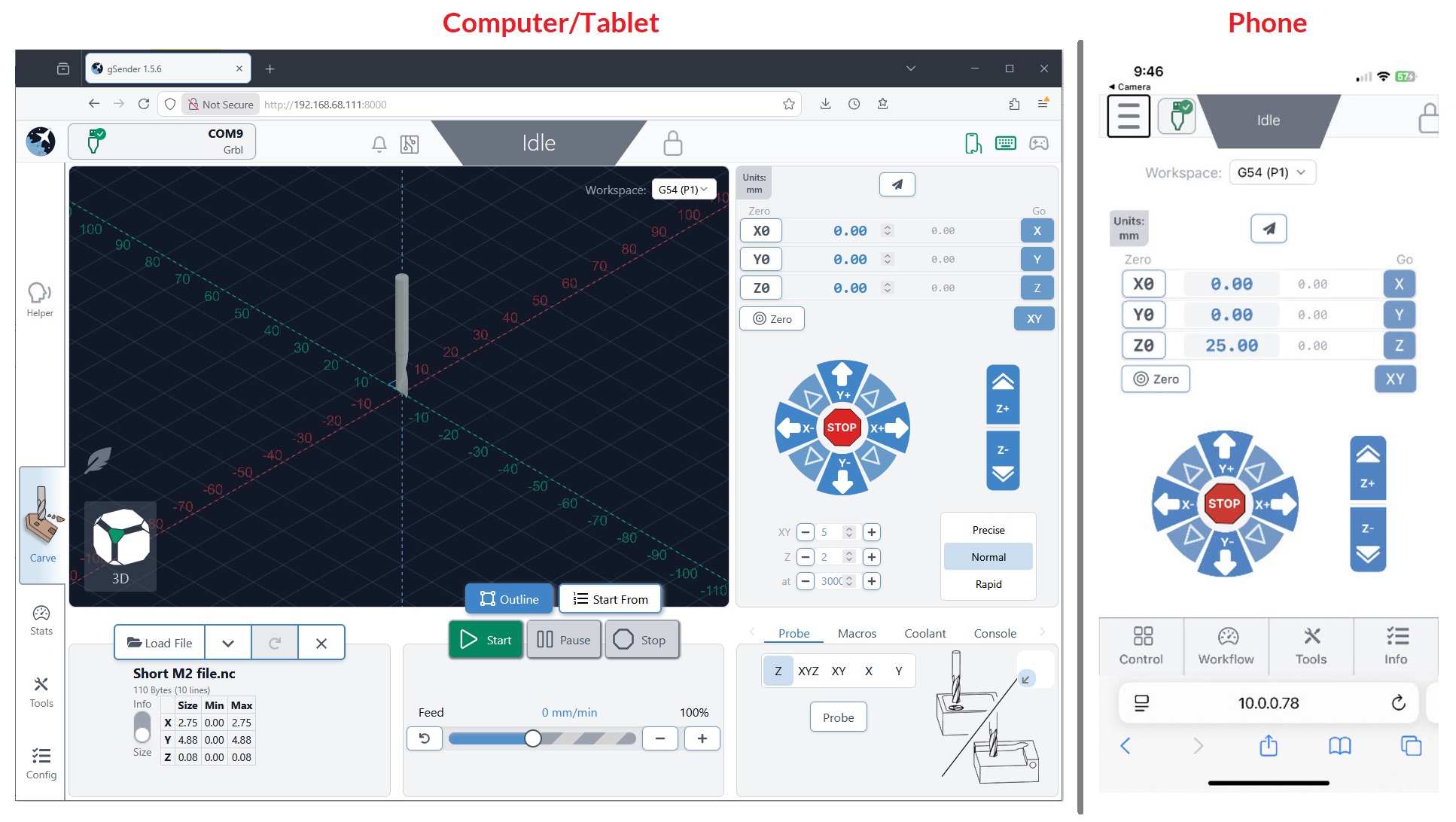
- To connect with your ‘remote device‘, click the cell phone icon again to open the wireless control settings. If you plan to use a phone, use the camera to scan the QR code, and for any other device ‘copy’ the text at the bottom right into the address bar of a web browser like Chrome or Edge. After the page loads, you should see a copy of gSender running in the web browser!
- If there was a problem during setup, then you might’ve encountered a firewall or unavailable port. Solutions to these are covered in the troubleshooting section.
Using gSender Remotely
With setup complete, regular use is very straightforward:
- As long as your ‘inline computer’ is on and connected to your CNC, and your CNC is powered on, then re-using the same text on the web browser of any device will give you access to a copy of gSender running fully remotely. Example text could look like this “192.168.68.155:8000” where for the phone interface it would have “/#/remote” added onto the end.
- For phones and tablets, it can also be easy to re-use this webpage by saving it to a bookmark on your home-screen so you can open Remote gSender easily anytime you want! Check out this video for details.
- Once connected, you’ll be able to control your CNC remotely with most of the same features and functions you’d normally expect:
- Use both the remote and inline devices simultaneously to control your CNC like jogging, opening and closing files, probing, macros, and more
- Notice that both their screens look exactly the same so you can watch the visualizer move around or check on the machine state
- On phones the screen will look different since we’ve optimized it for jogging, setting zeros, and probing
- When you click to ‘load a file’ you’ll only be able to load files from the device you’re currently on, don’t expect to gain access to the files stored on the opposite device. However once the file is loaded into gSender, you’ll be able to run it from any device.
- There can be multiple remote devices all connected to the same inline computer at the same time to control your CNC from multiple devices. There can also be multiple inline computers controlled from the same remote computer, giving you multi-CNC control from the same device.
- Some gSender-specific ‘local’ settings like won’t carry over to the remote device so if you want to make sure files are run the same way every time you’ll need to transfer your gSender settings over by following the ‘Transfer Settings’ instructions
Troubleshooting
If you ran into issues during remote control setup, here are some checks you can make:
- Make sure you have gSender open, have gSender connected to your CNC, and you’ve turned wireless control on
- Ensure both your computers / devices are on the same internet network and the IP numbers match on both devices
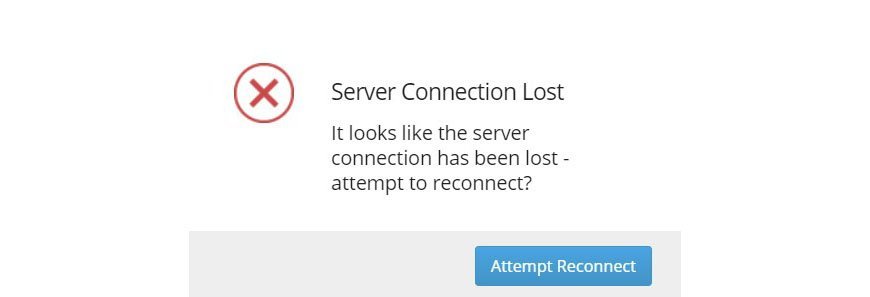
- If on the remote device you get a popup for “Server Connection Lost”, this just means that either gSender on the inline computer was closed or the shared internet is disconnecting. You should be able to fix this by restarting gSender on the inline device, then clicking “Attempt Reconnect” on the remote device.
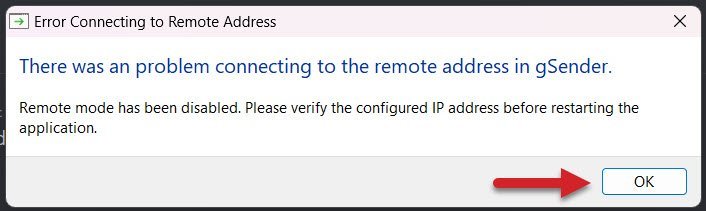
- If there was a problem using the specified IP address or Port, you’ll get an error window to let you know. In this case you should be able to reopen gSender, go back to the Wireless Control settings, and try another IP or Port until the setup is successful. Common port values are 3000, 8000, and 8080 and generally don’t go below 1024 since those are considered privileged. Changing IP addresses can also help if you’re running a VPN or need a different internal IP to external IP mapping.
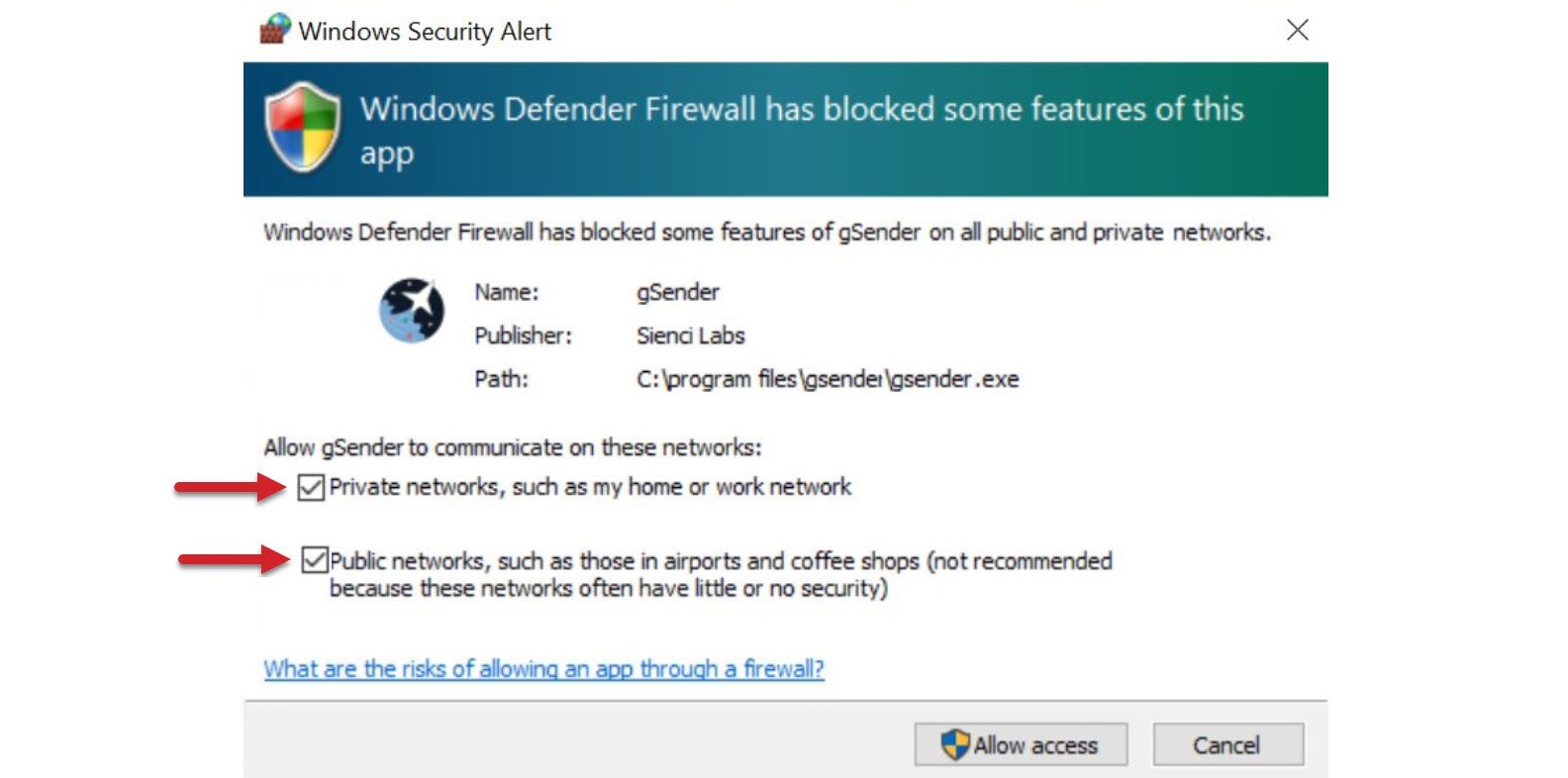
- If you have a Windows Security Alert window pop up during setup, it means your inline computers firewall isn’t allowing gSender to communicate to other devices on your network.
- Check the boxes beside “Private networks” and “Public networks” and click the ‘Allow access’ button
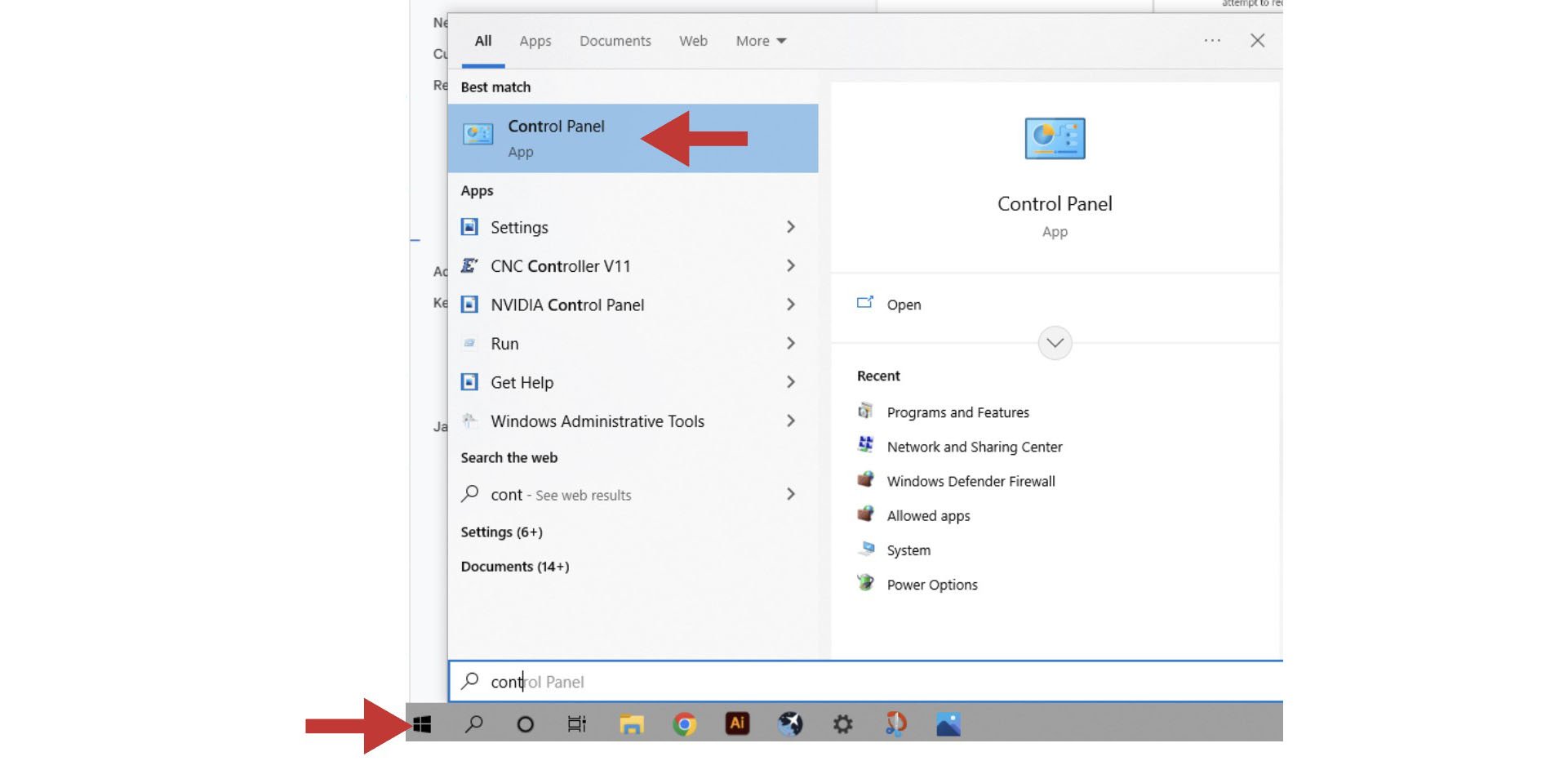
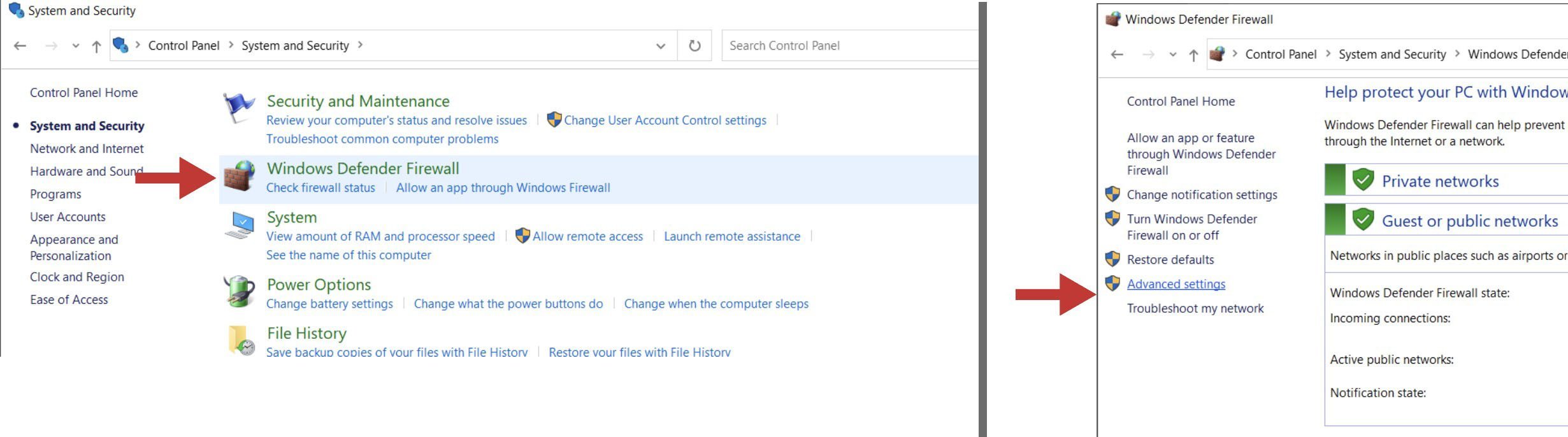
- If you don’t see this popup, click Start and open your computer’s Control Panel
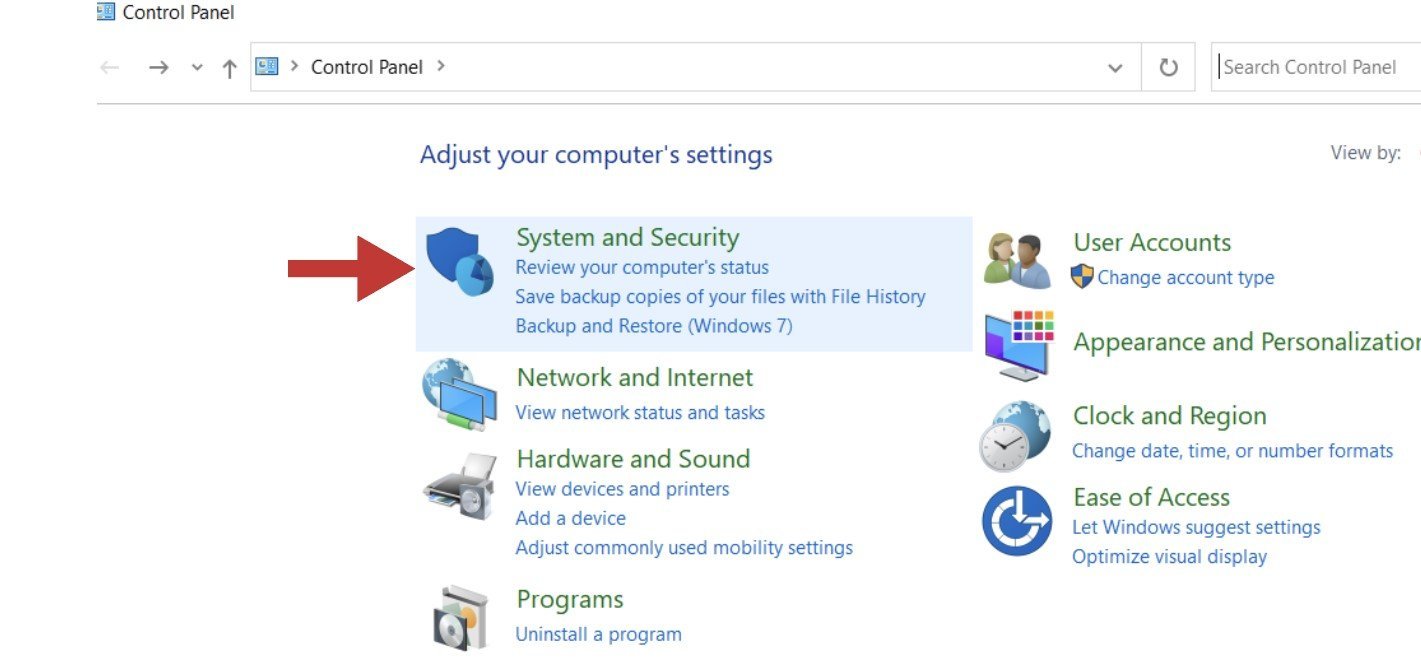
- Open the ‘System and Security’ settings
- Open the ‘Windows Defender Firewall’ and go to its ‘Advanced settings’
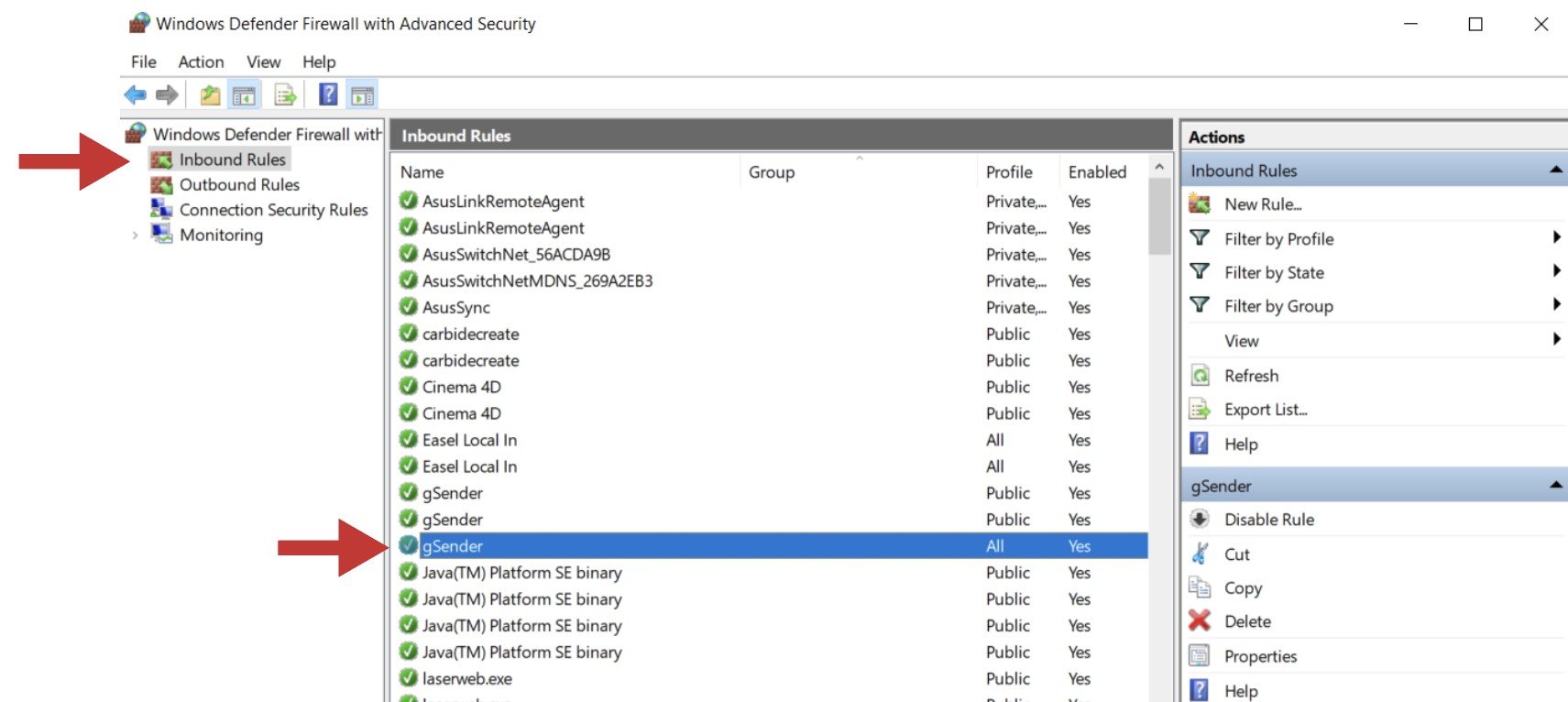
- In the column on the left, click on ‘Inbound Rules’ and then find and double-click on ‘gSender’. There might be three options of gSender to click on, you’ll want to click on the version that has the word “All” under the ‘Profile’ column
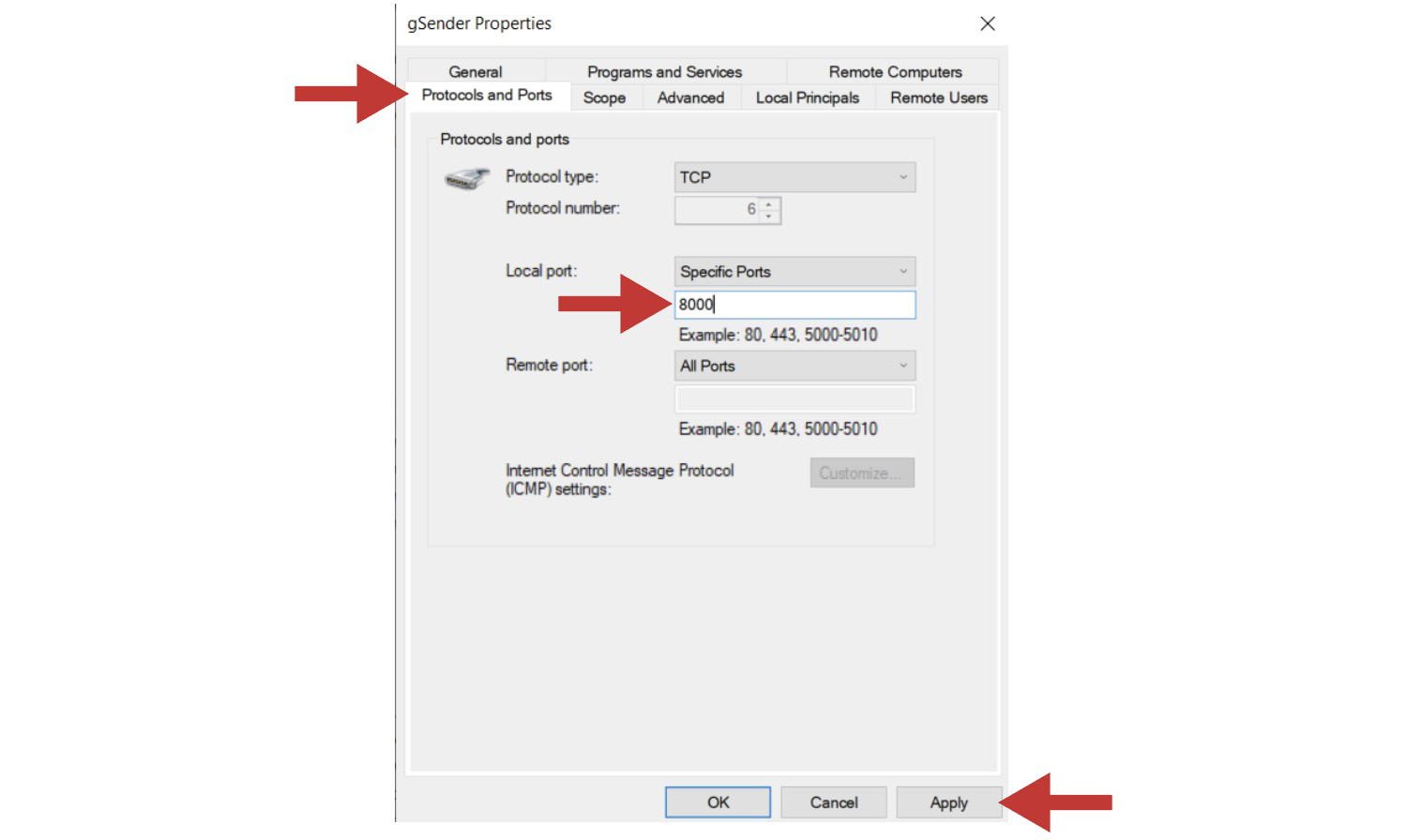
- In the pop-up box, click on the tab labelled ‘Protocols and Ports’. By ‘Local port:’ you’ll want to use the drop-down menu to select “Specific Ports” and then type in the default port of “8000”. If you have added a custom port to gSender’s Shortcut properties, you’ll need to type in that number instead. Once you hit ‘Apply’, you can check to see if this resolved your problem.
- On newer devices you might alternatively need to go to your Windows security tab, and click the Allow an app through firewall text.
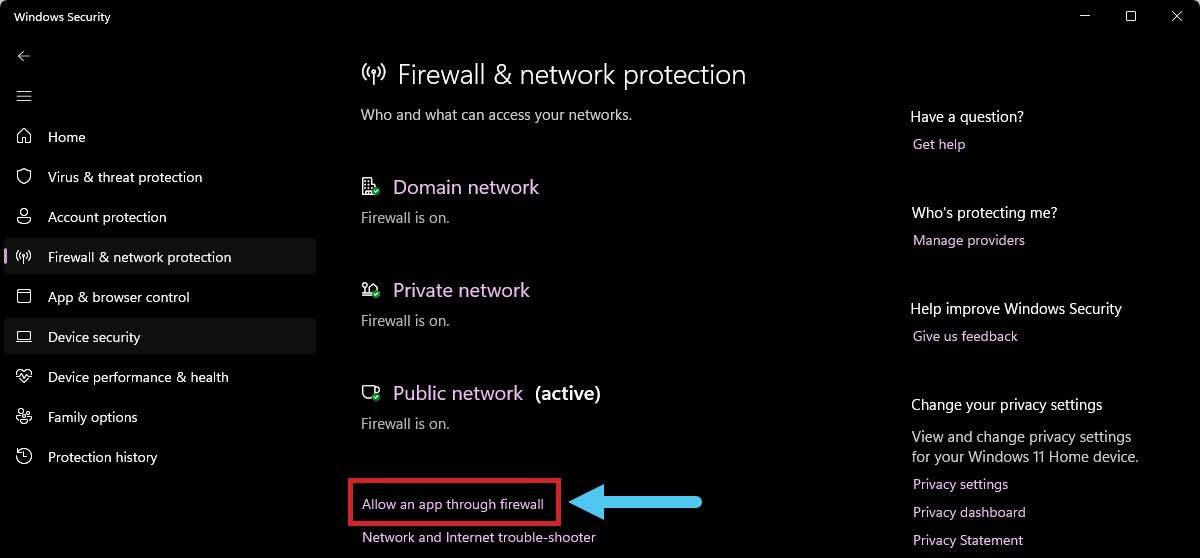
- Scroll down until you see gSender, click on Change Settings, then enable gSender to communicate through the firewall by clicking the checkbox.
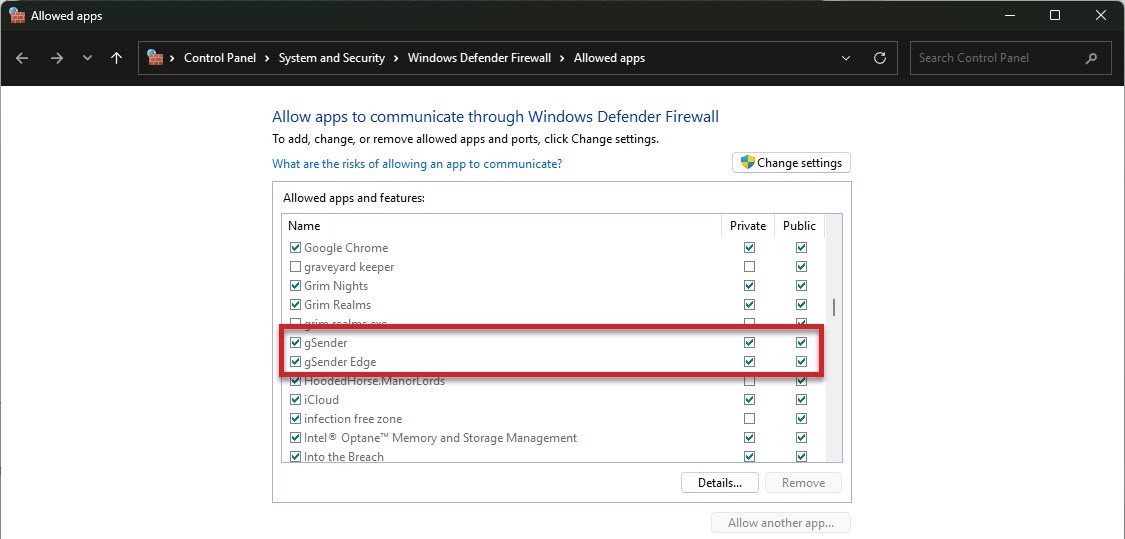
- Check the boxes beside “Private networks” and “Public networks” and click the ‘Allow access’ button
- If on Mac, Linux, or Pi you find that you can’t connect with outside devices or just want some extra safety you might want to try opening the Universal FireWall (UFW) on a given port to allow external access. This can be started with
sudo ufw enable(if UFW is not found then install it usingsudo apt-get install ufwand your root password) then opening the desired port, for examplesudo ufw allow 8080opens port 8080 for external access. If you want to see what ports are already open, you can useufw status verbose. - If when gSender reopens you’re met with a white screen, this means an error has occurred that we weren’t able to detect. This is rare, but unless we can find some other way to manage this the only fix is to uninstall gSender and reinstall it again.
Macros
Macros are standalone buttons within the gSender interface that allow you to execute a series of g-code commands when they’re run. Macros can come in handy for a variety of uses:
- Button to run a v-carve or laser engraving of a common insignia into the back of your wood pieces
- Perform a specialized probing function for a particular jig you’ve set up
- Apply a predetermined offset that allows you to easily array your cutting jobs
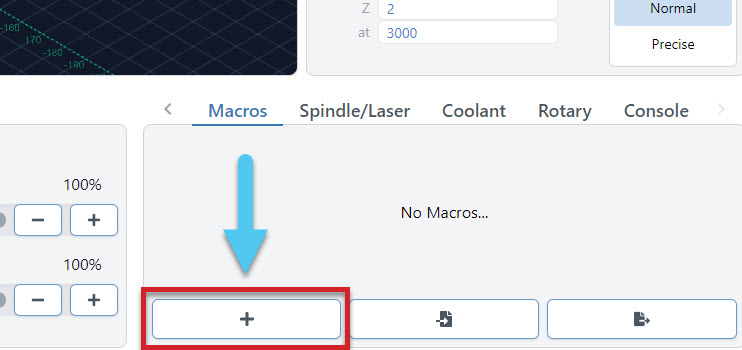
You can create macros using the ‘+’ button under the ‘Macros’ tab.
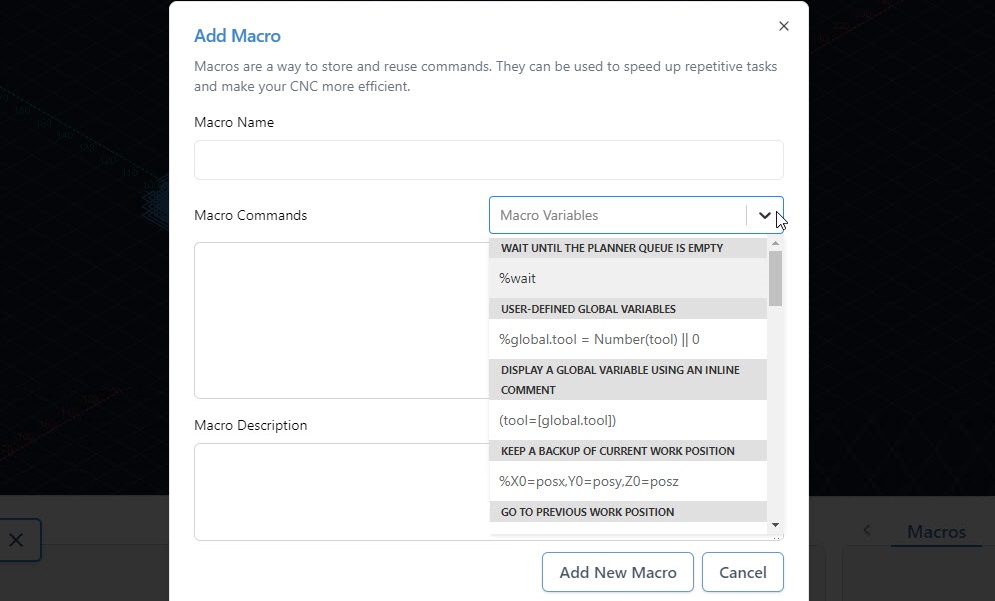
Here you’ll see a space for inputting your custom g-code and adding a name and description for the macro. Advanced users may also want to leverage ‘Macro Variables’ which allow for greater g-code manipulation and pseudo-programming. Press ‘Add New Macro’ when completed.
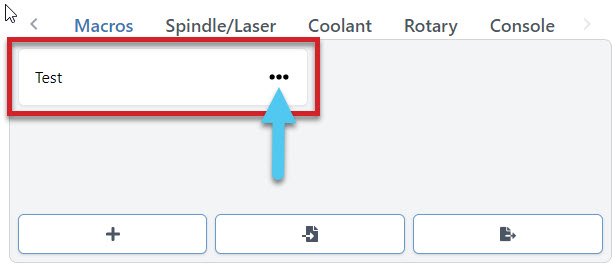
New macros will appear as buttons in the ‘Macro’ tab that can be rearranged by dragging them around. These buttons will display the macro name, show the description if you hover your mouse over them, and can always be later altered or deleted by clicking on their ‘…’ button.
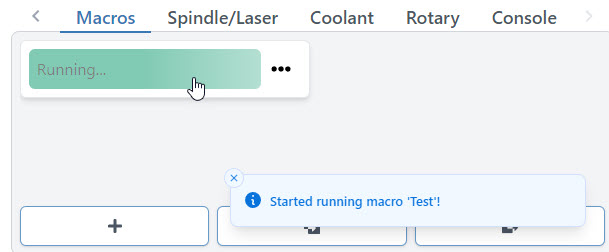
Any macro can be run by pressing it. Once running, you should see the macro start to pulse green while a toast notification on the bottom right hand side of gSender also notifies you that it’s running.
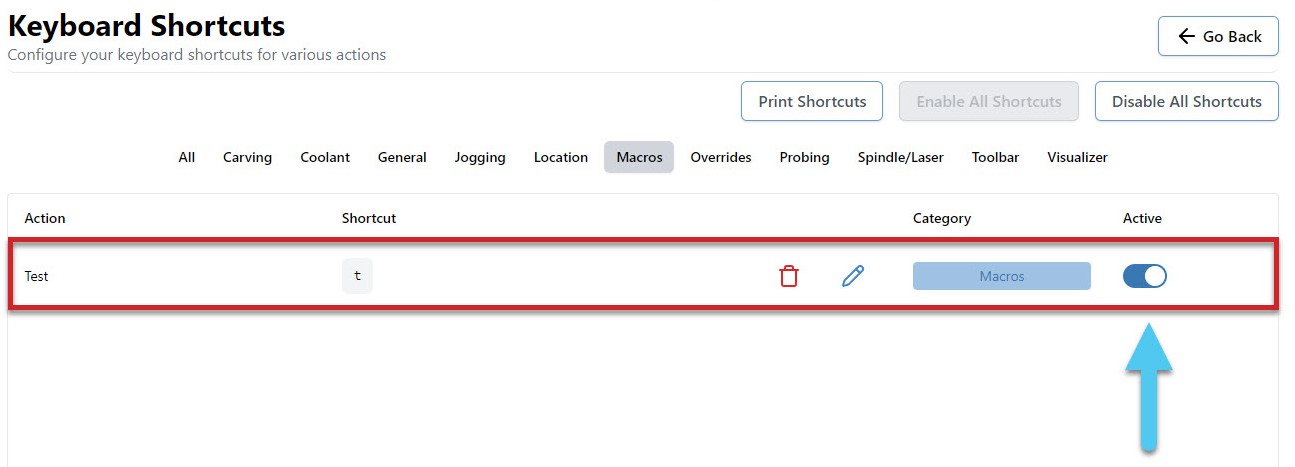
Macros can also be ran using shortcuts. Every time you create a new macro it’ll become available on the shortcuts list for you to assign a key or gamepad button to. Add your keybindings and press the Active toggle to enable the shortcut.
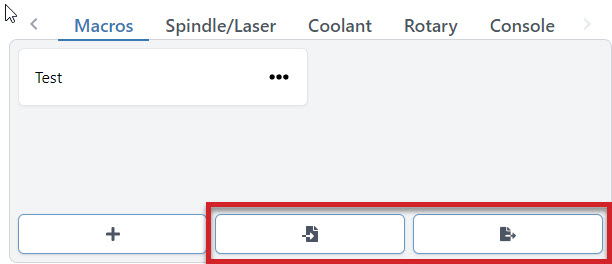
You can share macros with other users or transfer them between computers by using the import and export features. To import one or multiple macros, just press the button on the left and a browsing window will appear so that you can select the macros you wish to import. Similarly, to export all your current macros, press the button on the right and it’ll open a save window, to generate a save file for you.
Advanced Macros
gSenders Macro architecture is based on JavaScript and uses the Esprima library (https://esprima.org/) and so will theoretically support any code that it does. This is exciting because Macros can move far past basic variables if you’d like to perform advanced functions on your CNC:
If you want some initial inspiration, see other macros made by our community or ones made for CNCjs (another g-code sender) which should also work in gSender. Otherwise, here are some other points of guidance:
- You’ll want to develop your understanding of typical g-codes and m-codes that are used for CNC control (the pages linked are very good sources for that)
- The “Macro Variables” dropdown in gSender shows many of the most commonly used operations when making your own macro
- Make your own variable with
%variable = value_you_want_to_set(ex. % probeSpeed = 150) - Use your variable in g-code, like
G21 G91 G0 X[variable](moves the X-axis by the amount set in the variable) - Test your code by printing it to the console
([variable]) - Make dialog boxes appear on the screen to confirm a value or position by putting in an M0 line with a comment, for example
M0 ;Remember to turn on your router before the next stepwhich will pause the macro and give you the option to ‘continue’ or ‘cancel’ - Start experimenting with basic math using numbers and variables like
%combo = (variable + variable2 + 4)/2(Hint: you don’t need square brackets around variable names when the line starts with%, explanation) - Use global variables
global.variableif you want variables that you can use in other macros (note that these get reset once gSender is closed) - Read up on all the other Math features available like absolute value, rounding, and trigonometry (become very useful for more advanced probing cycles for example)
- Start to add more logic to your code using ternary expressions to choose between two outcomes (e.g.
%variable = (30 > 20) ? 10 : 20which is checking if 30 is bigger than 20, and if it is it’ll make the variable = 10, otherwise it’ll make the variable = 20). - Here’s an example of a more advanced macro, made by gSenders Lead Developer, which shows off much of the guidance given above. This macro was made for our new SLB control board in order to cycle between its 3 status light states.
- The macro is only 3 lines. First it checks what the current light state is and sets it to 0 if it doesn’t have a state. Next, it sets the lights to the current state but applies a modulus of 3 since we can only have a state value of 0, 1, or 2 so we’ll get an error if the value is 3 or above. Lastly, it adds +1 to the state so that if the macro is run again it’ll put the lights into a new state.
%nextLight = global.lightState || 0M356 P0 Q[nextLight % 3]%global.lightState = Number(nextLight) + 1
- Store many variables in an array so that those variables can be used in other macros without assigning them all as global
%setup = {}%setup.this = 0%setup.that = 1%global.setup = setup- then in the other macro
%setup = global.setup
- Create functions that you can then call later such as
%rapid = function (x, y) {return 'G53 G90 G0 X' + x + ' Y' + y + 'n'}then later run it with[rapid(x, y)] - Read more about the Esprima library here: https://docs.esprima.org/en/latest/syntactic-analysis.html
Community Macros
If you’d like to add your own macros to this page, edit the page on GitHub and use the template below for each macro.
Disclaimer! These Macros are submitted by our community. They aren’t vetted by us and might cause damage to your machine so use them at your own risk! Please review the code and test it before assuming it will work with your machine setup.
Console
The console is a tab that you can access at the bottom right hand side of the gSender window. The text here shows a truer representation of the communication that happens between your computer and your CNC. As you start to understand more about your machine, this is a great tab to reference so you can see if commands are being properly sent, received, and executed. It’s also great for troubleshooting since you can:
- Manually send g-code commands to your CNC
- Check for errors or alarms and the g-code that caused them (normally the line that comes before)
- Copy text straight from the console to send in an email for help by clicking the ‘…’ button next to ‘Run’, then clicking ‘Copy last 50 lines’.
- Even open the console in another window by pressing the top, right icon to help you see more console text at a time (if you press the button again once you reconnect to your CNC, it’ll reconnect the console stream to the original window too)
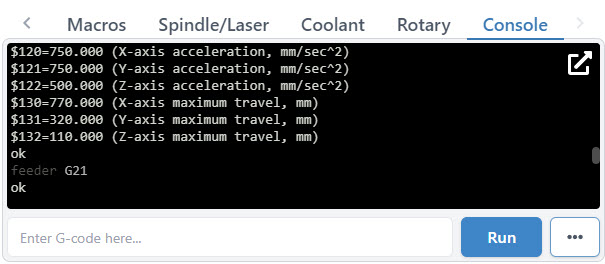
When you first start up gSender, the console will display EEPROM settings that are sent from the Arduino in the control box. These EEPROM settings control parameters for your CNC such as:
- Maximum speed and acceleration in each axis
- Boundaries of the work area
- Direction of each axis movement
- Limit switch settings
To access EEPROM settings again, enter in “$$” into the console and hit the ‘Enter’ key or click the ‘Run’ button. These settings can be changed via the console as well as the Firmware Tool which we’ve designed as a much more visual way to alter machine settings.
Automations
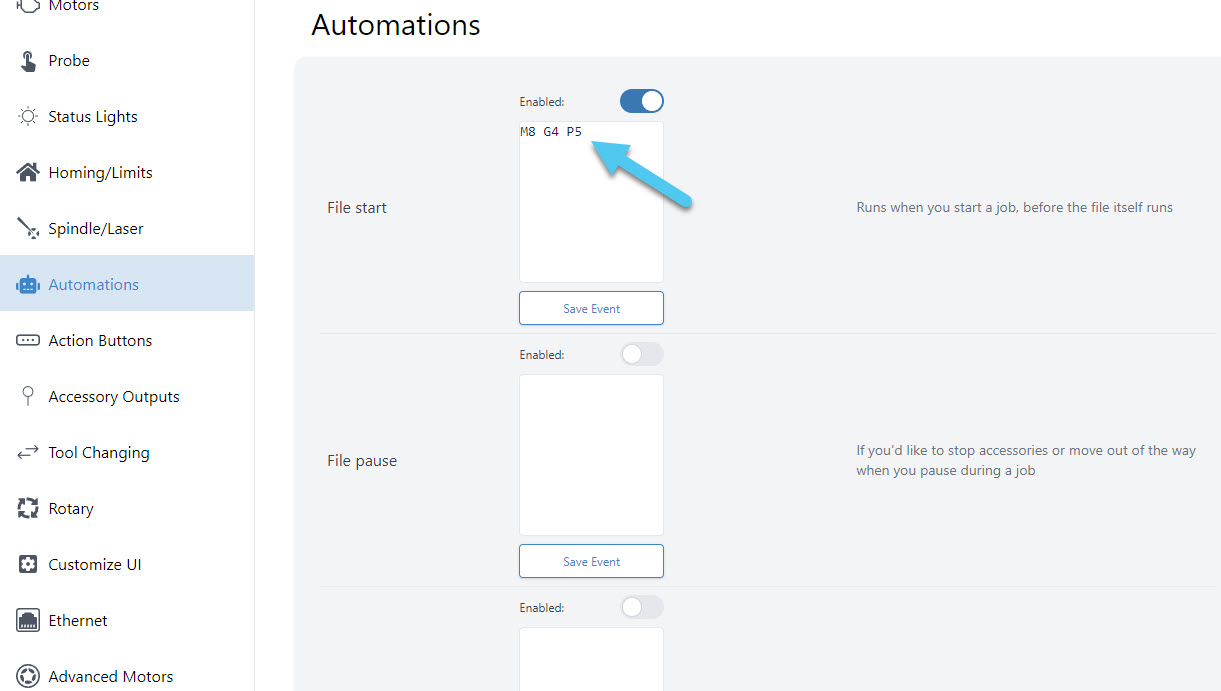
A powerful feature to control your accessories automatically (like turning on/off a spindle or vacuum) or to run movement macros that are custom to your machine. ‘Program Events’ (formerly “Start/Stop G-code”)’ in gSenders settings automatically apply g-code to your cutting job at the start, end, or if you stop, pause, or resume the job. The ‘Stop’ event is there to ensure that “ending g-code” is always run even if you have to stop a job prematurely. You can also toggle these on and off if you don’t want them run for specific jobs.
Three massive perks to setting up automations this way are:
- There’s no need to get into the weeds customizing your CAM post processor
- gSender is able to send code when you pause, resume, or emergency stop your machine, all of which a g-code file on its own would never be able to do
- This additional amount of control will make your CNC safer to use
For example, if you were to add M3/M5 commands to your CAM post processor to control your spindle but then chose to pause your job midway to check something, then most CNCs wouldn’t know to stop spinning your spindle or retract it since g-code files can’t carry this information; this is where gSender is able to the heavy lifting.
For the text-box of the situation you want the action to happen, type in the g-code commands you wish to run, then press the ‘Update‘ button to save it. For example, if you installed an IOT relay to turn your router and vacuum on and off and wanted to make sure they were enabled for every job you ran, you could add:
- “M8” for Start and Resume
- “M9” for Stop and Pause
- If you wanted to add a delay to give your vacuum or router time to fully turn on, then you could add “G4 P5” after the M8 for a delay of 5 seconds (you can customize that delay to your equipment)
- If you wanted to keep the vacuum and router running during a pause, then you don’t need to add “M9” to Pause
- All this can also apply to automatically control a spindle, where you’d instead use “M3” and “M5“, you can also add a delay with “G4 P#“
- If you want to raise the Z-axis on Pause and lower it on Resume, you could also add:
- “%global.move=modal.distance” then “G91 G0 Z-5” for Pause to move 5mm out of the way
- “G91 G0 Z5” then “[global.move]” for Resume to move back down
Tool Changing
For CNC machines, tool changes are pauses that are programmed in the g-code for a user to switch out the cutting tool for a different one, or the machine to do that automatically. The workflow can also sometimes involve pausing until the user tells it to continue, usually through a ‘Resume’ and/or ‘Confirm Tool Change’ button on the machine interface. This allows you to run multiple toolpaths (cutting operations) within one g-code file.
The g-code for tool changing is an M6 command. gSender is quite capable when it comes to customizing CNCs for tool changing, even having full Wizards built-in. The tool change options are in Config ➜ Tool Changing. You can select from one of 6 different options, and even choose to ‘passthrough’ the M6 and T commands to the CNC controller for CNCs that are capable of handling tool changes on their own.
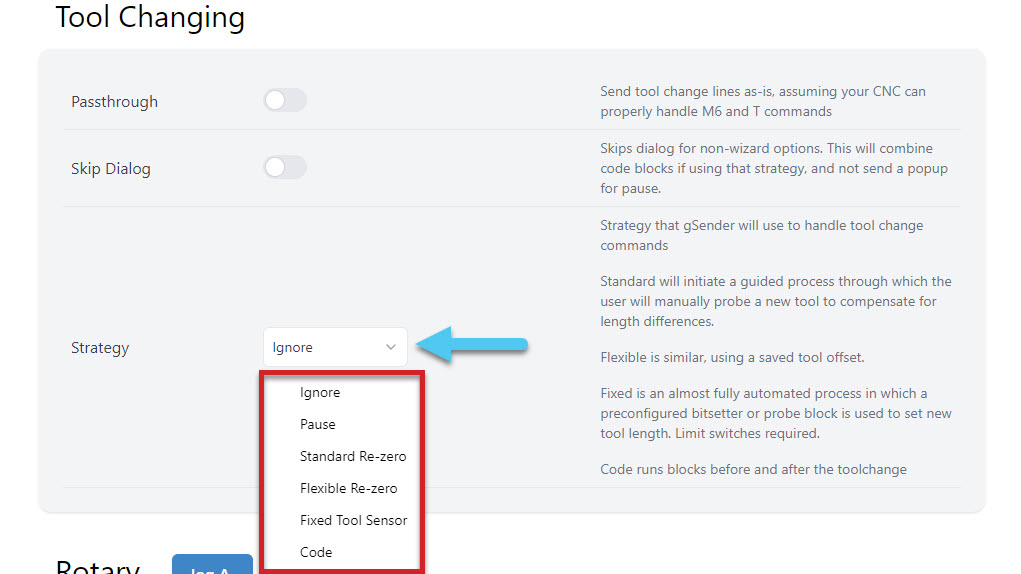
You can Ignore any M6 tool change commands, Pause the job when a tool change is recognized, or select one of the Wizards that will guide you through pre-set tool changing methods. In the image below, you can see an example of the Helper window opening up to show the Standard Re-zero Wizard with all of its guided steps.
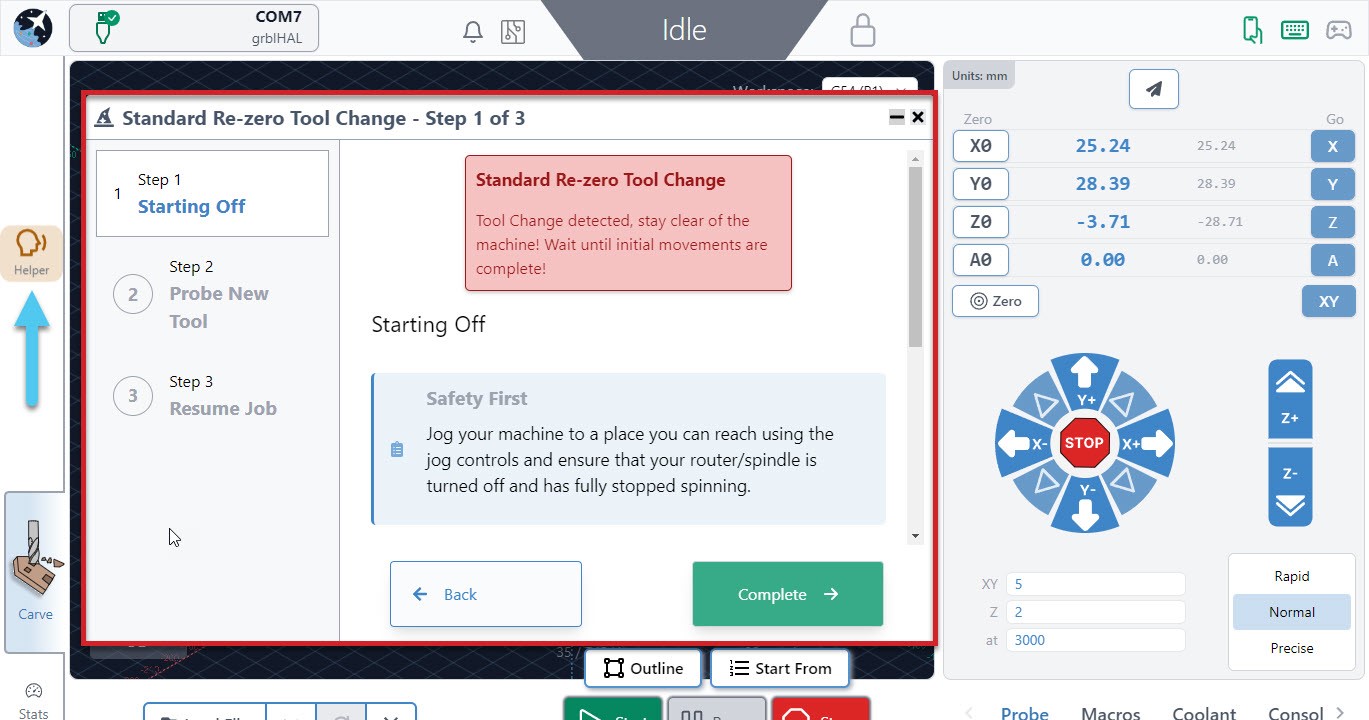
If you are using one of the wizard options, know that you can access all other gSender controls while the wizard is open like jogging and zeroing. It also has flexibility to go back a step if you missed something or had a mistake, or to be minimized temporarily if you want to check the visualizer.
- Ignore
This simply ignores any M6 commands in the g-code file. This is the default option since it’s perfect for beginners that only make projects with one tool or those that create separate files for each tool and prefer to manually perform tool changes between files. - Pause
Pauses gSender at the tool change point, as if you had hit the pause button manually. This gives you freedom to jog, zero, or anything else you’d like, and is great for those that are running multi-tool files but want to use a different process than the Wizards provide. This could be a manual probing process, a different tool changing approach, or running custom macros to support your machines specific hardware. gSender is compatible with tool length sensors like the Carbide 3D bitsetter, and our community has compiled a list of macros for tool changing that you can use when you are paused. Just note that pausing can’t always guarantee keeping track of your movements and actions when it comes time to resume the job so try to ensure you get back to the starting point and set zeros correctly. - Standard Re-zero (Wizard)
Titled ‘standard’ because it’s exactly the same as the standard process you might normally follow for running a file, changing the tool, re-zeroing Z, then running the next file except it’s applied to a single file with multiple toolpaths. Since the process is so familiar, this is a great way to dip your toes into tool changing within one file. Compatible with using a touch plate or the paper method, zero out at a predetermined spot (usually at the front left corner), and use jogging to move around. The advantage of introducing this extra automation and guidance during tool changes is that you don’t have to worry about custom macros and it reminds you of simple steps like turning the router back on or zeroing Z. - Flexible Re-zero (Wizard)
Similar to the ‘standard’ wizard with similar steps and manual movements but provides the ability to zero Z off a point that wasn’t your starting Z when it comes time to change the tool. This is useful if you tend to carve away your material and lose the starting Z or you don’t have limit switches but would like a process similar to a tool length sensor. - Fixed Tool Sensor (Wizard)
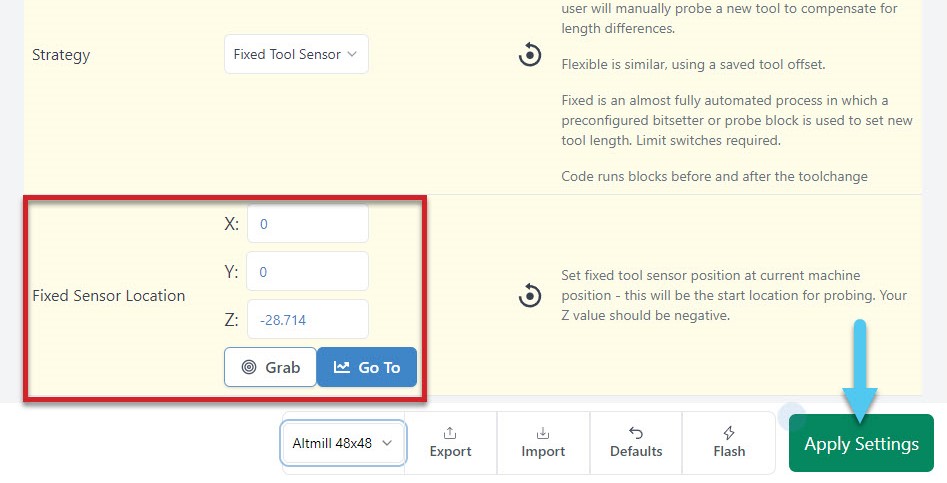
This is the most automated setting where all probes and movements are done for you, you only need to intervene by changing the tools. Set up the job and zero normally then expect the machine to move to the sensor location when it reaches a tool change, verify tool length, prompt for a change, probe new tool, then resume cutting. Your machine will need to be homed, have limit switches, and have a tool length sensor (compatible with Carbide 3D bitsetter for example) in order for this option to work. To set up the sensor mount the router/spindle as far down as you might typically put it, with the longest bit mounted in it, then jog it to hover over the tool length sensor with some room to spare and open Config ➜ Tool Changing to Grab that location, then apply the new settings. This will be the spot your machine moves to every tool change so if it’s too low or your sensor doesn’t work it’ll run into the sensor. You can also enter these coordinates manually, and test them with the Go To button.
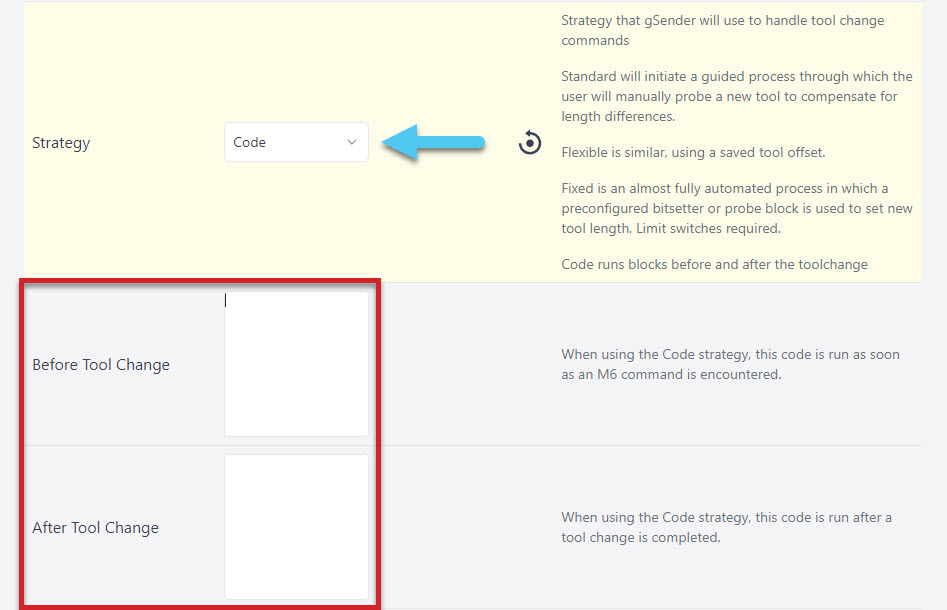
- Code
You can enter your own macros before and after the tool change with this strategy selected which is fairly powerful for making tool changing processes that are more automated than just pausing.
You can also learn more about how some of this works by checking out this user-made video by SparksTech!
More
There’s always more to learn about gSender including many videos of lesser-known tips, setups on different CNCs, and open source modifications people have made. For example, check out these videos of Chris showing off some common and less-common tips about how to improve your gSender experience!