

When making g-code for any CNC machine, there will come a time where you’ll click the final button to “Generate g-code”. Doing so, how will you know that the g-code file is going to be properly suited to your particular CNC? Though many CNCs are able to interpret what’s broadly known as ‘g-code’, the reality is that different manufacturers have their own quirks that their machines expect to see; you can think of this as g-code being the primary language while different CNCs speak with dialects or accents. For our machines, and many other hobby CNCs, this dialect is known as “grbl”.
This is where post-processing comes in. A ‘post-processor’ is simply a set of rules that can be followed to add tweaks to the main g-code, to ensure it’ll work for particular machines. If the post-processor isn’t selected or set up correctly this will usually result in errors, stalls, or unexpected behaviour while running your jobs.
To help out, here are the most popular CAM programs and their LongMill/AltMill-compatible post-processors. Some CAM programs may not have post-processor options since they’re already designed for hobby CNC use.
Note that: even if you design in inches, it is best practice to export files with a millimeters post-processor. We have seen errors show up when the g-code file was exported in inches.
Post-Processors Chart
| CAM Software | Post-Processor |
| Vectric Cut2D, Vectric VCarve, Vectric Aspire | grbl (mm) |
| Carveco Maker, Carveco Maker+ | UGS grbl |
| Fusion 360 | grbl* |
| Easel, Easel Pro | No selection required |
| Carbide Create | grbl |
| CAMLab | No selection required |
| Estlcam | No selection required |
| FreeCAD | grbl (mm) |
| BobCAD/CAM | Custom: https://forum.sienci.com/t/CAD-cam-software-post-processors/436/3 |
| Inventor CAM | grbl (mm) |
Fusion 360 Export Settings
*To avoid potential issues with Fusion 360, we also recommend you make the following checks to your post-processor:
- Safe Retracts set as “Clearance Height” and NOT “G28”. It will be obvious that you have this on if you don’t have limit switches or forget to home your machine and at the start of the job your bit plunges suddenly really deep into your material.
- Output M6 set as “No” (unless you plan to set up tool changing)
- Output Tool Number set as “No” (unless you plan to set up tool changing)
ATC Post-Processors
See this page for the ATC-compatible post-processors for Vectric and Carveco.
Vortex Post-Processor
See this page for the Vortex post-processor file and how to install it on Vectric. Note that we do not have post processors for other CAM programs.
Vectric Machine Configuration
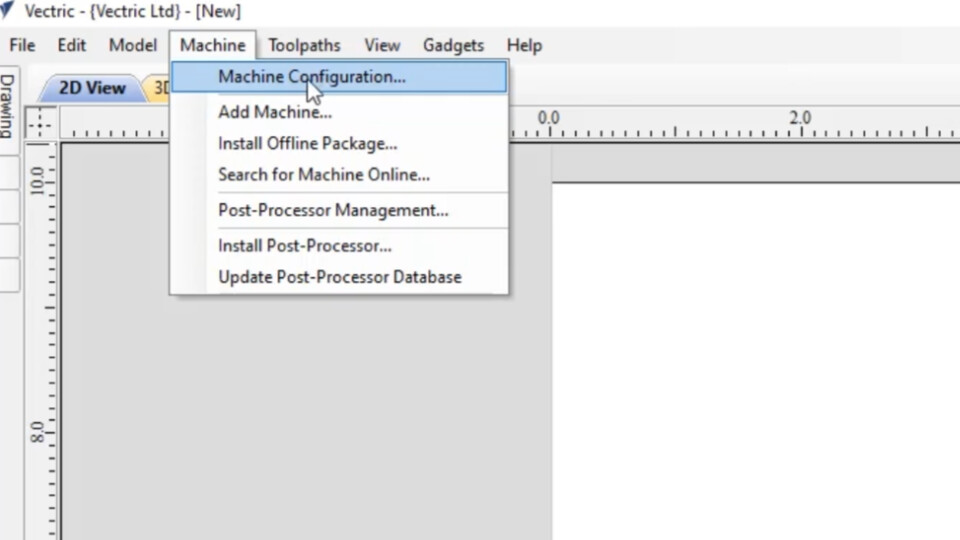
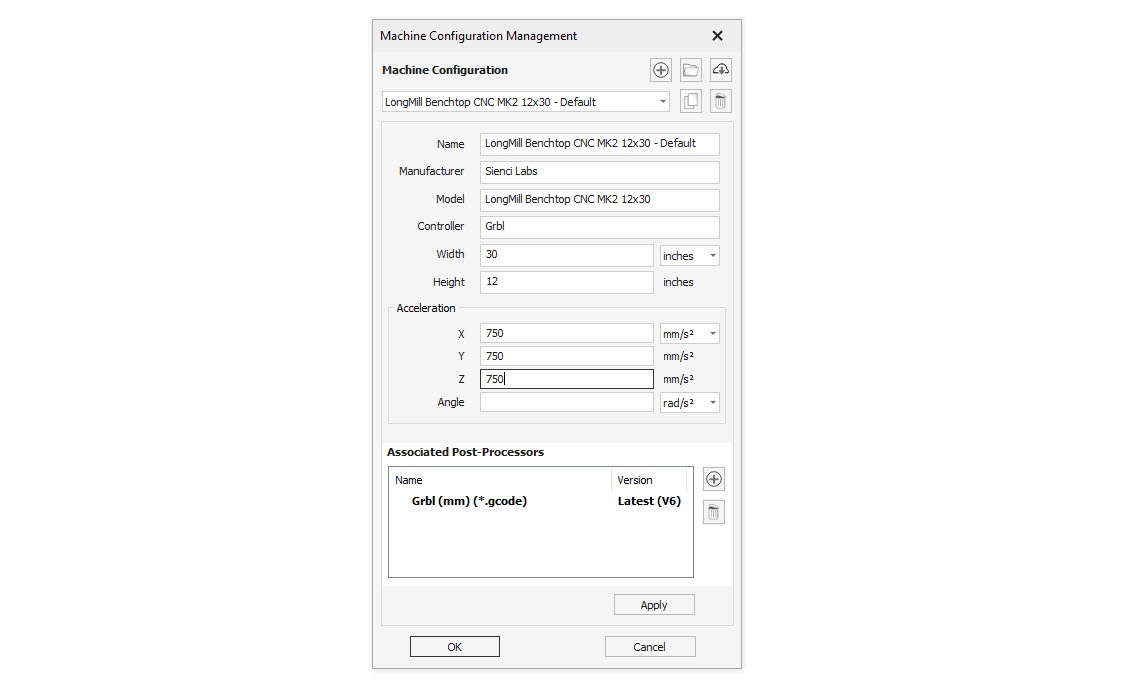
If you are using Vectric VCarve, you can create a custom machine configuration file so you can assign a default post-processor for your CNC. Go to Machine, and in the drop down select Machine Configuration.
For the latest version of VCarve, please input all the LongMill accelerations as 750mm/s² and AltMill accelerations as 1500 mm/s². If not using these CNCs, consult your manufacturer for your recommended motor speeds.
Fun fact: some other members of the grbl CNC family include OpenBuilds, Shapeoko, BobsCNC and X-Carve – all of which started with the Arduino Uno, just like the LongMill had!